 Cropped
Help
Help / Reference
Cropped on Windows
Cropped for Windows has the same Studio, Drop Zone and Annotate window as the Mac app. Screenshots and screen recording with your microphone arrived in version 0.3.2.
What it looks like
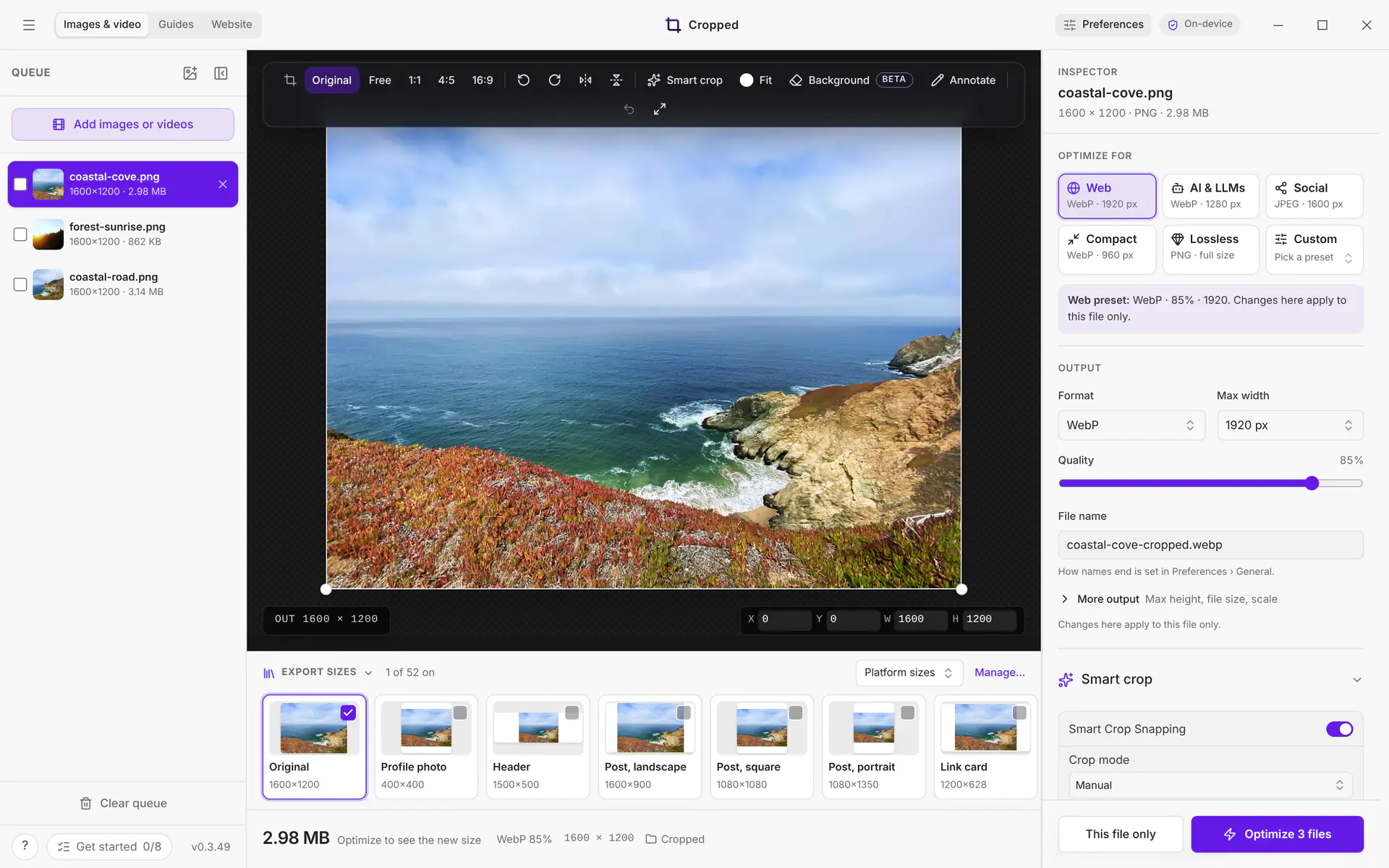
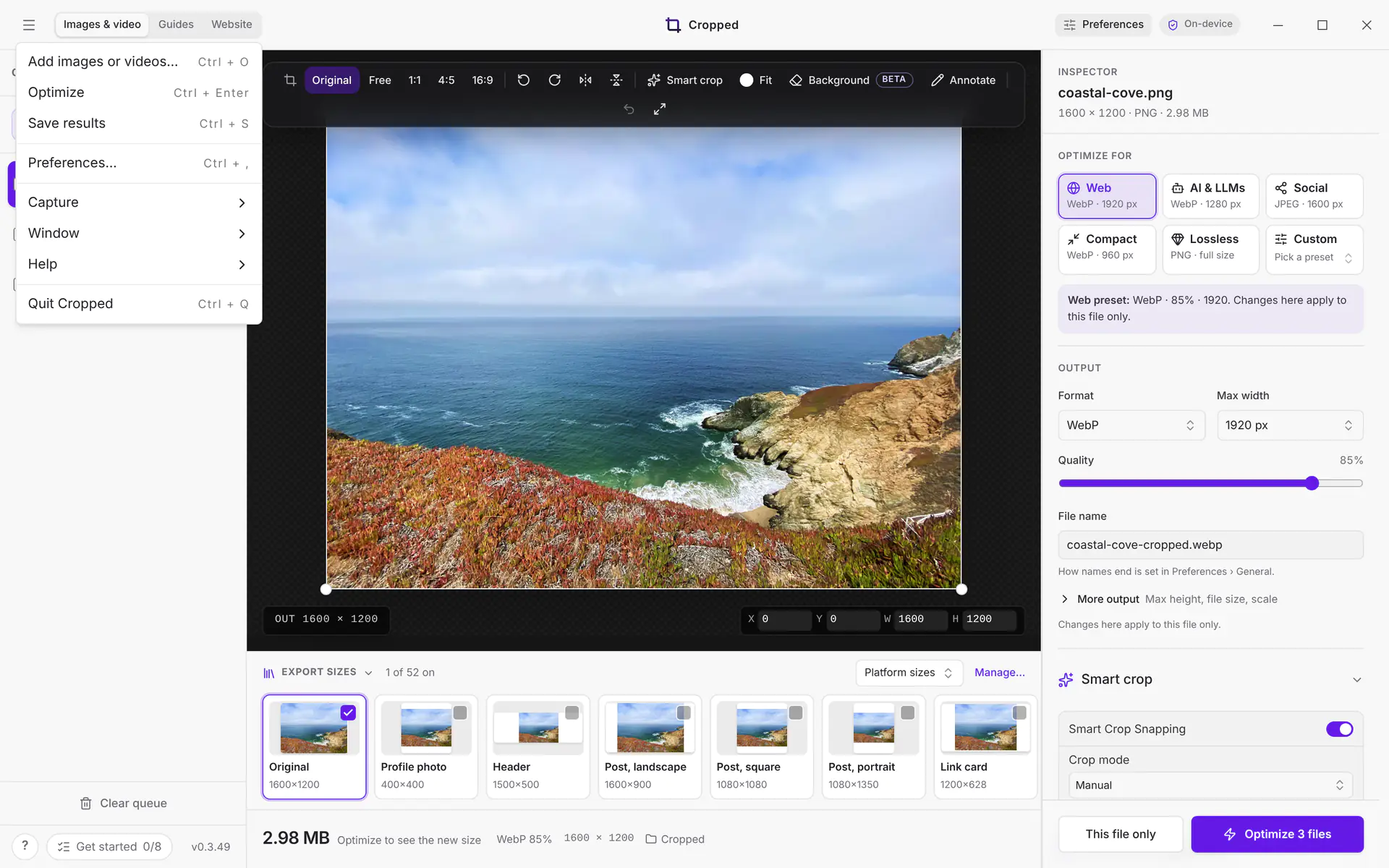
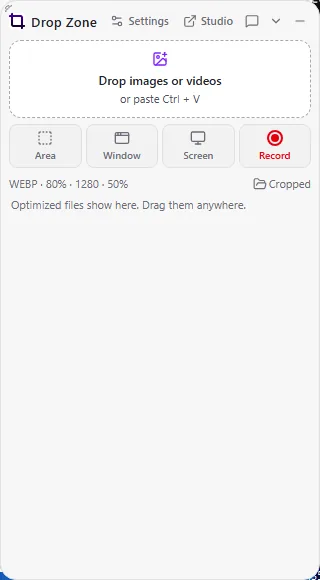
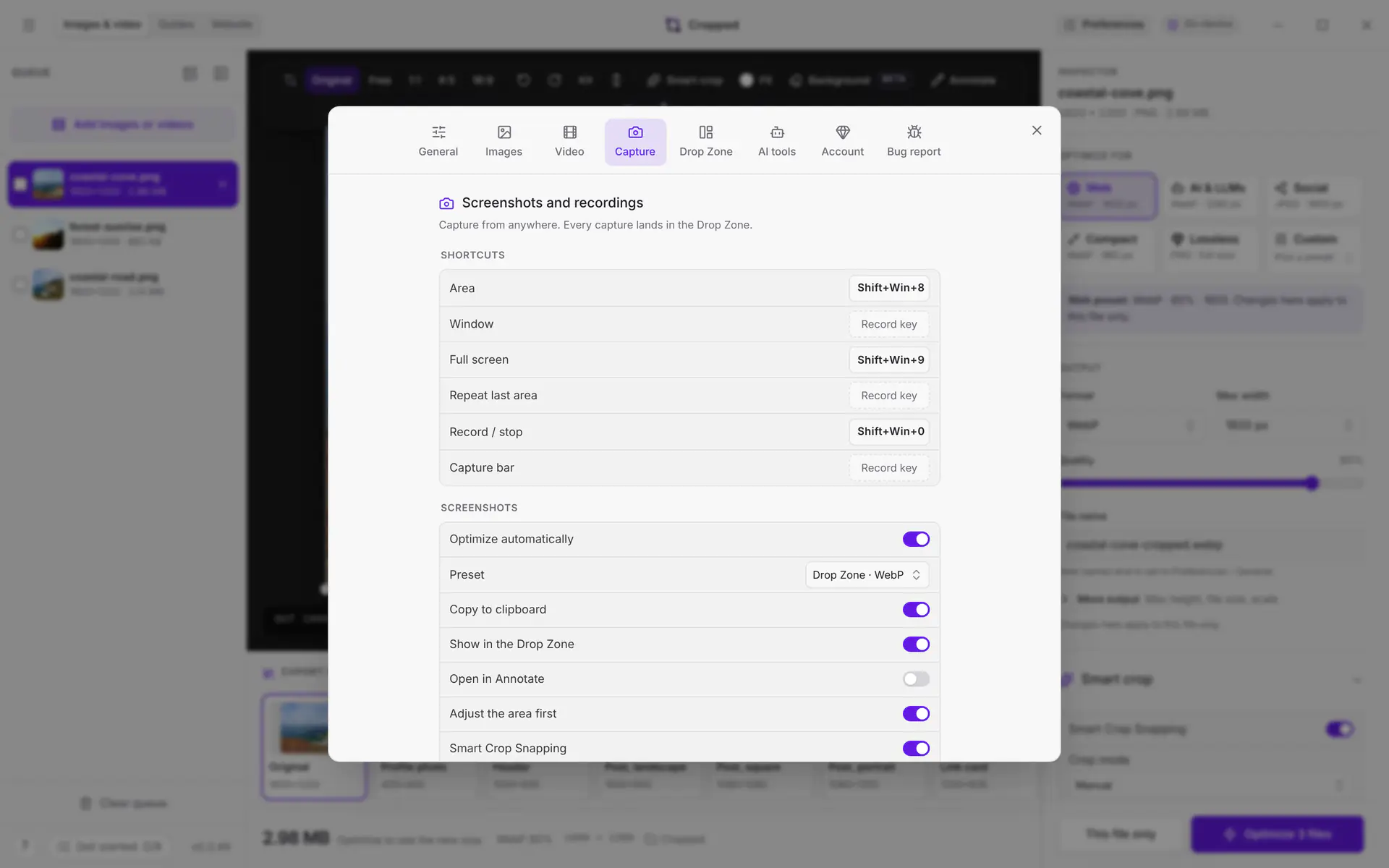
These pictures are from Cropped on Windows 11.
Frames, Guides and PNG or JPG copies
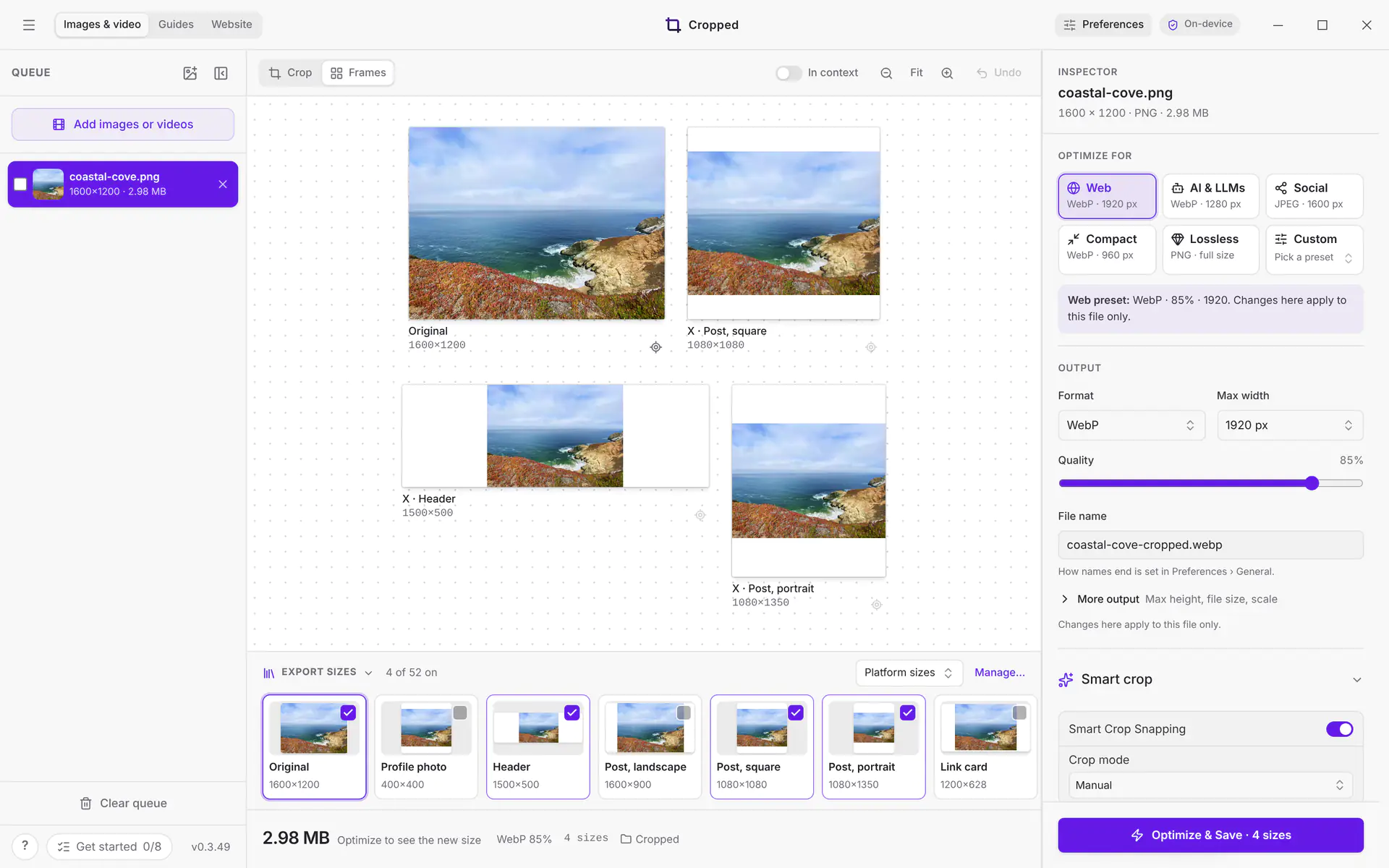
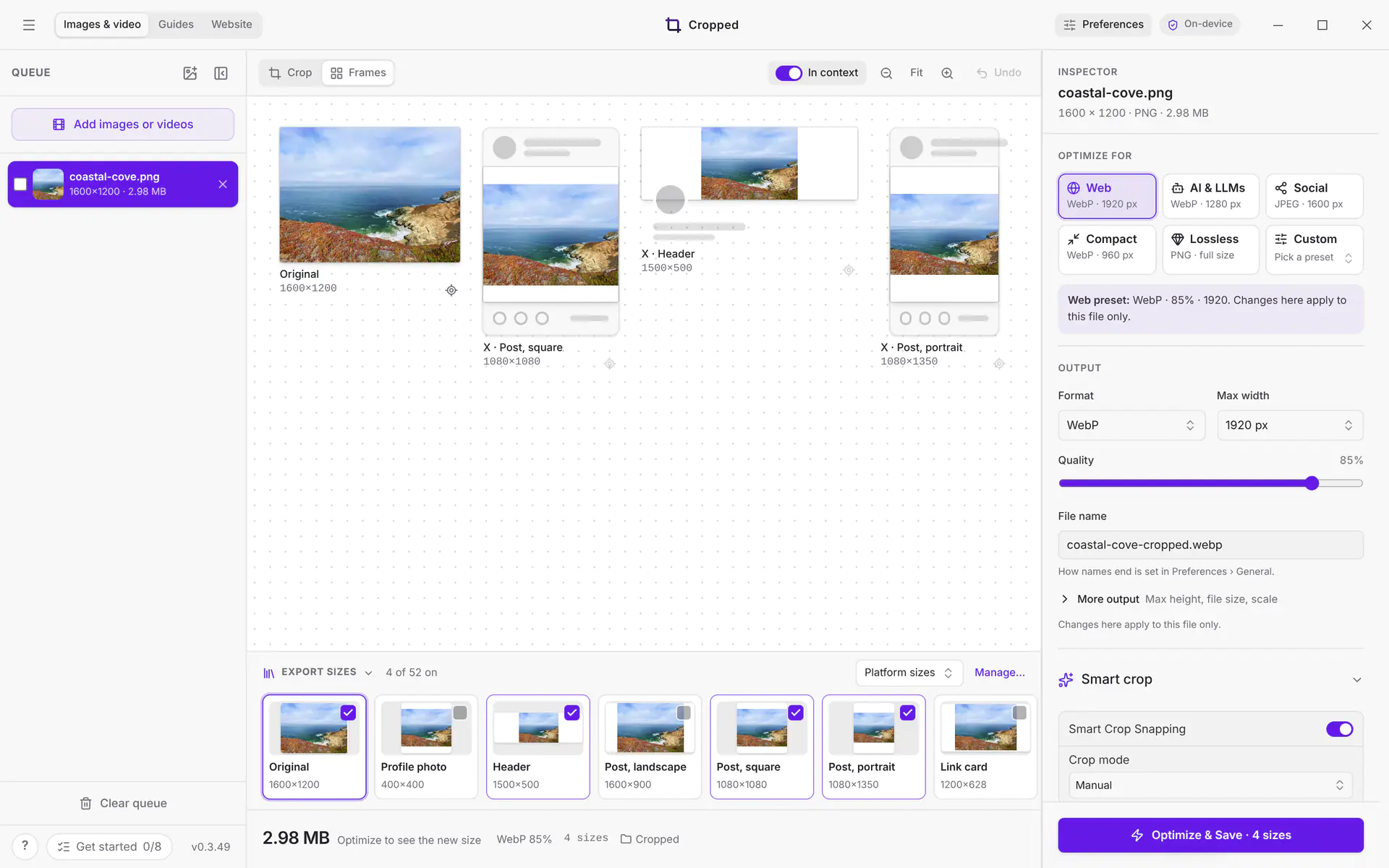
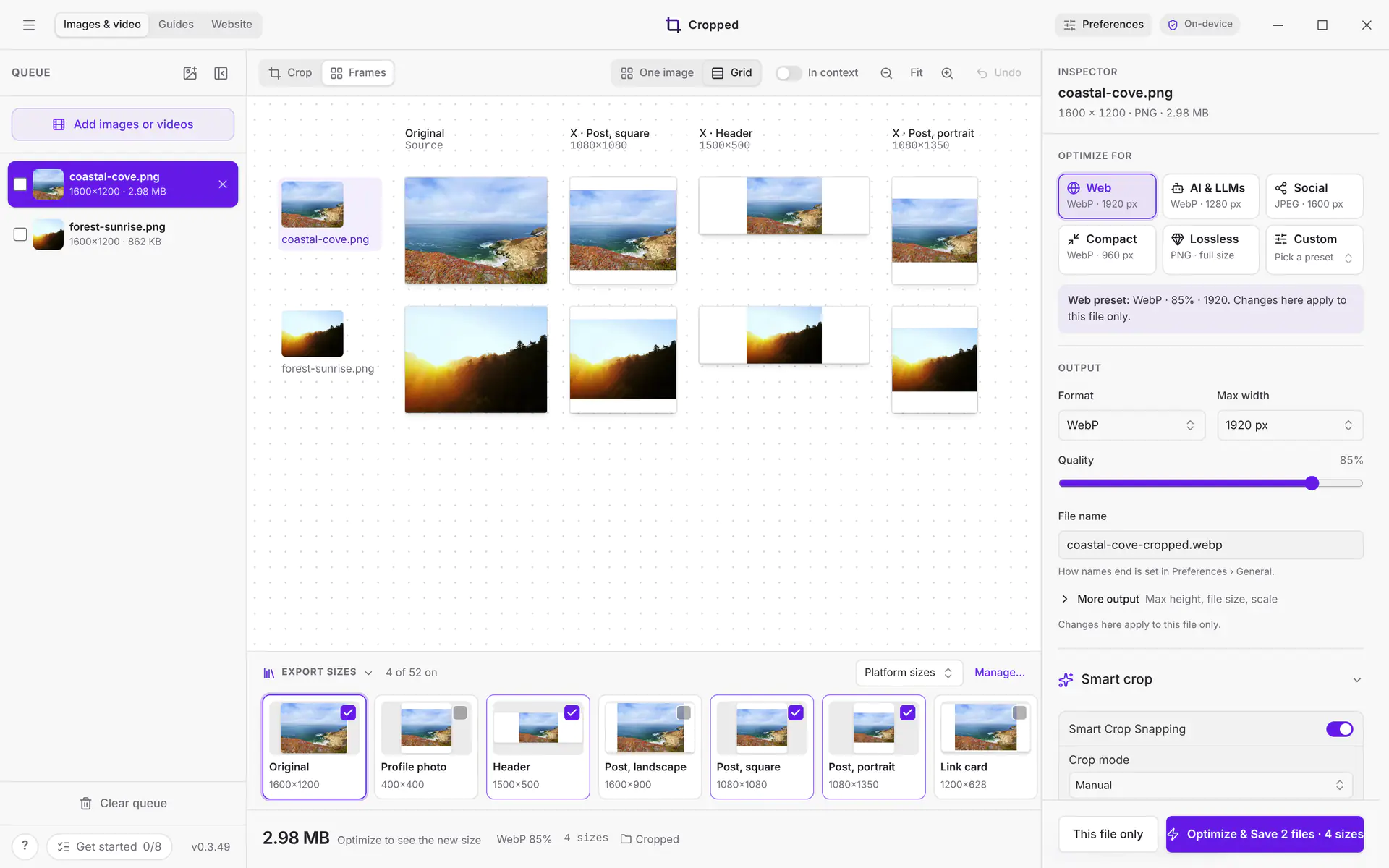
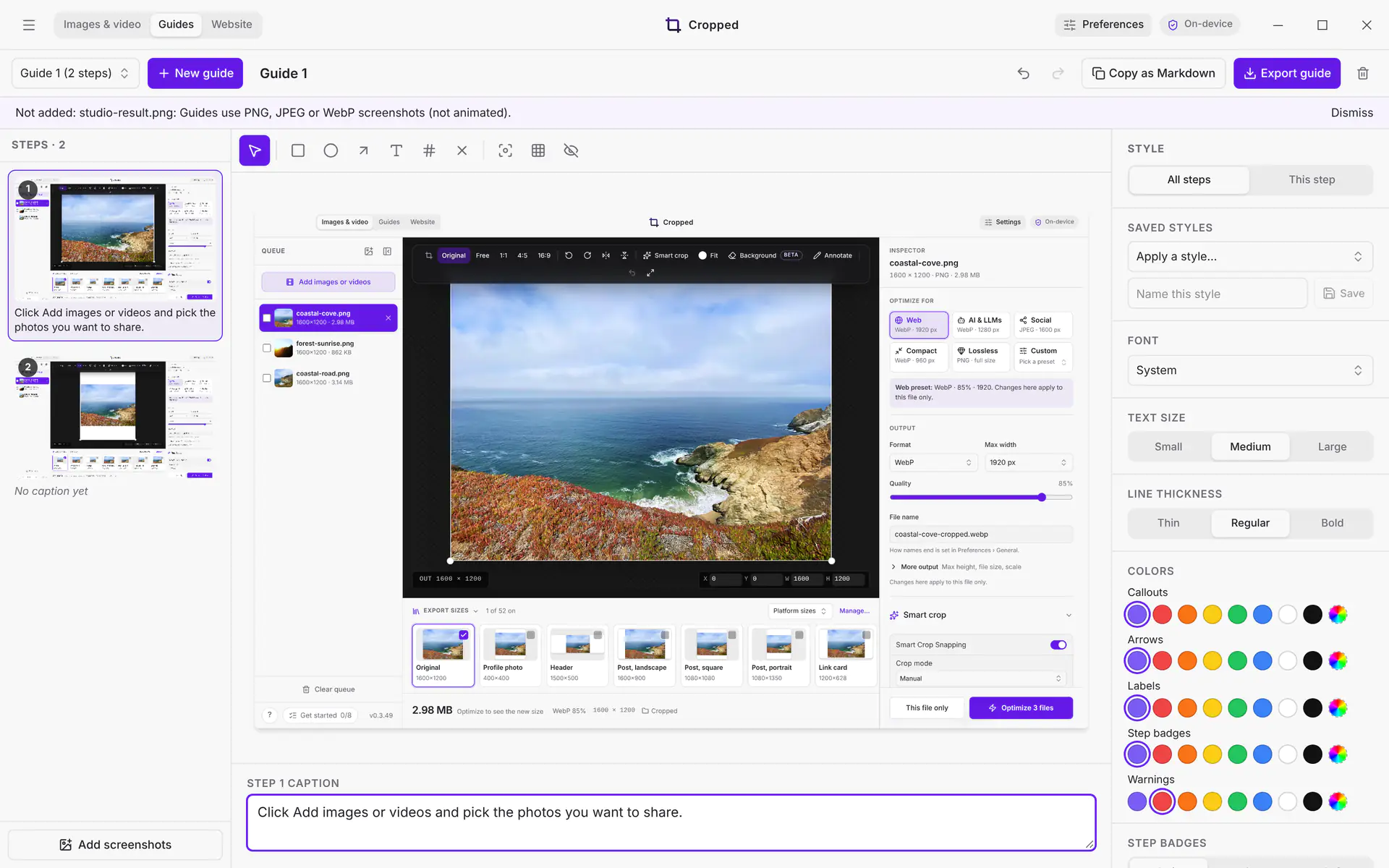
These are the same on Windows as on the Mac. The pictures are from Cropped 0.3.25 on Windows 11.
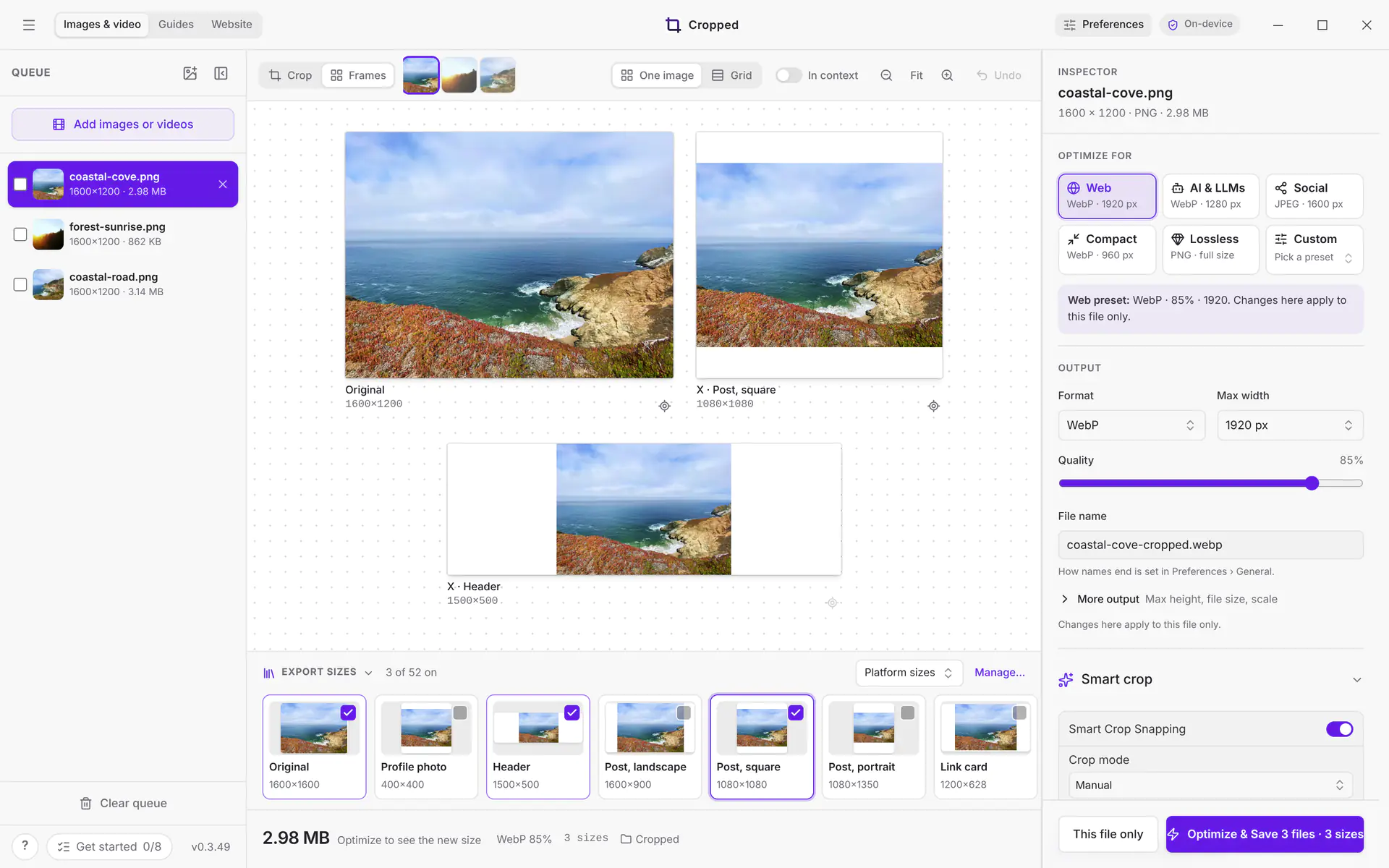
Frames shows every size you ticked side by side. See See every size at once.
Guides turns screenshots into a step-by-step guide. This one was built by an AI app through Cropped's AI tools. See Make step-by-step guides.
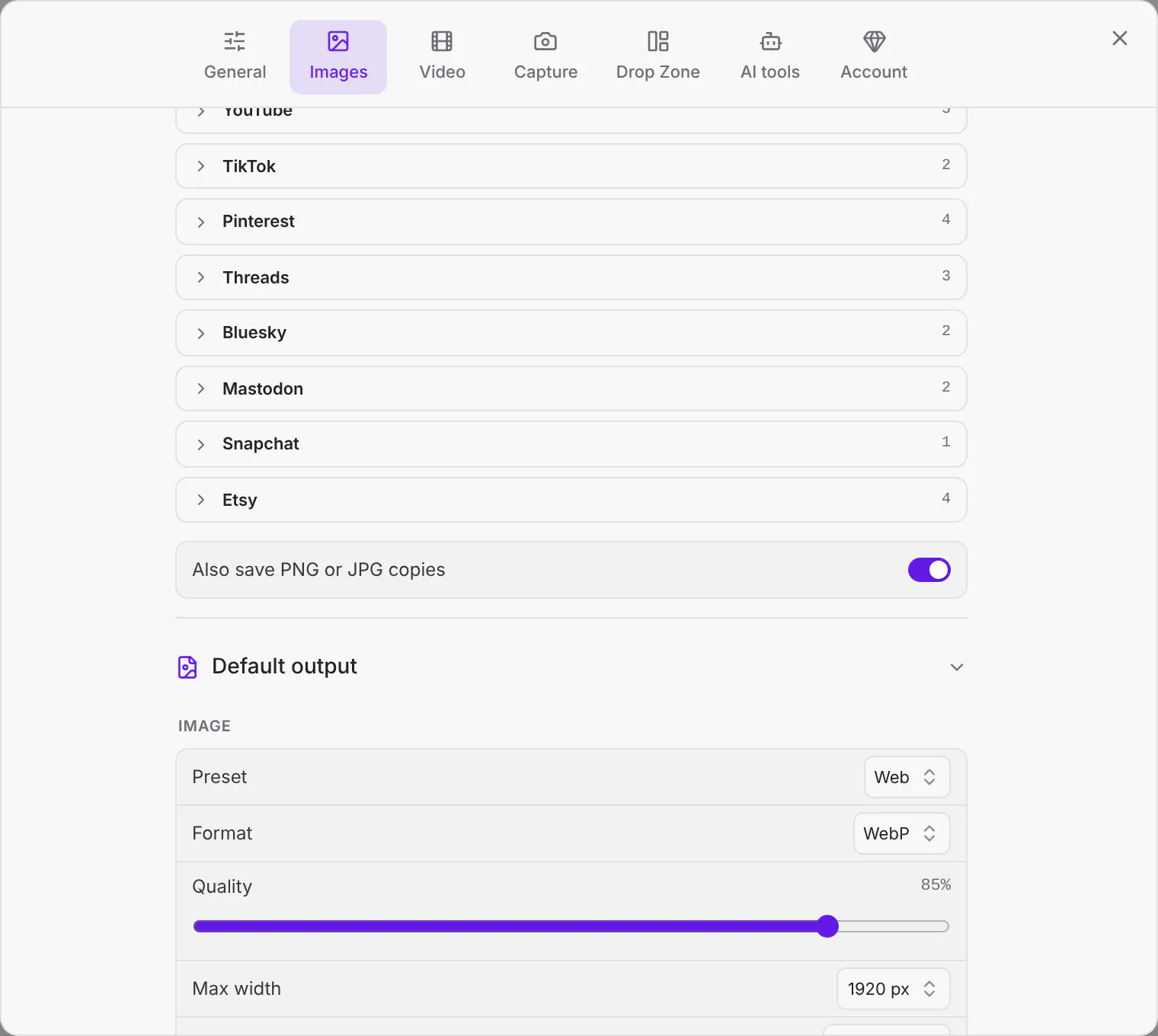
Also save PNG or JPG copies appears under Export sizes while the format is WebP or AVIF. See PNG and JPG copies for posting.
Fit, Extend and AI fill
When a frame reaches past the picture, the Fill button on the picture toolbar picks what goes in the gap, the same as on the Mac: see Fit, background color and AI fill. Fit keeps the whole picture on a color, Crop trims to the frame, Extend fills the gaps from the picture's own edges, and AI fill has your own image provider paint the rest.
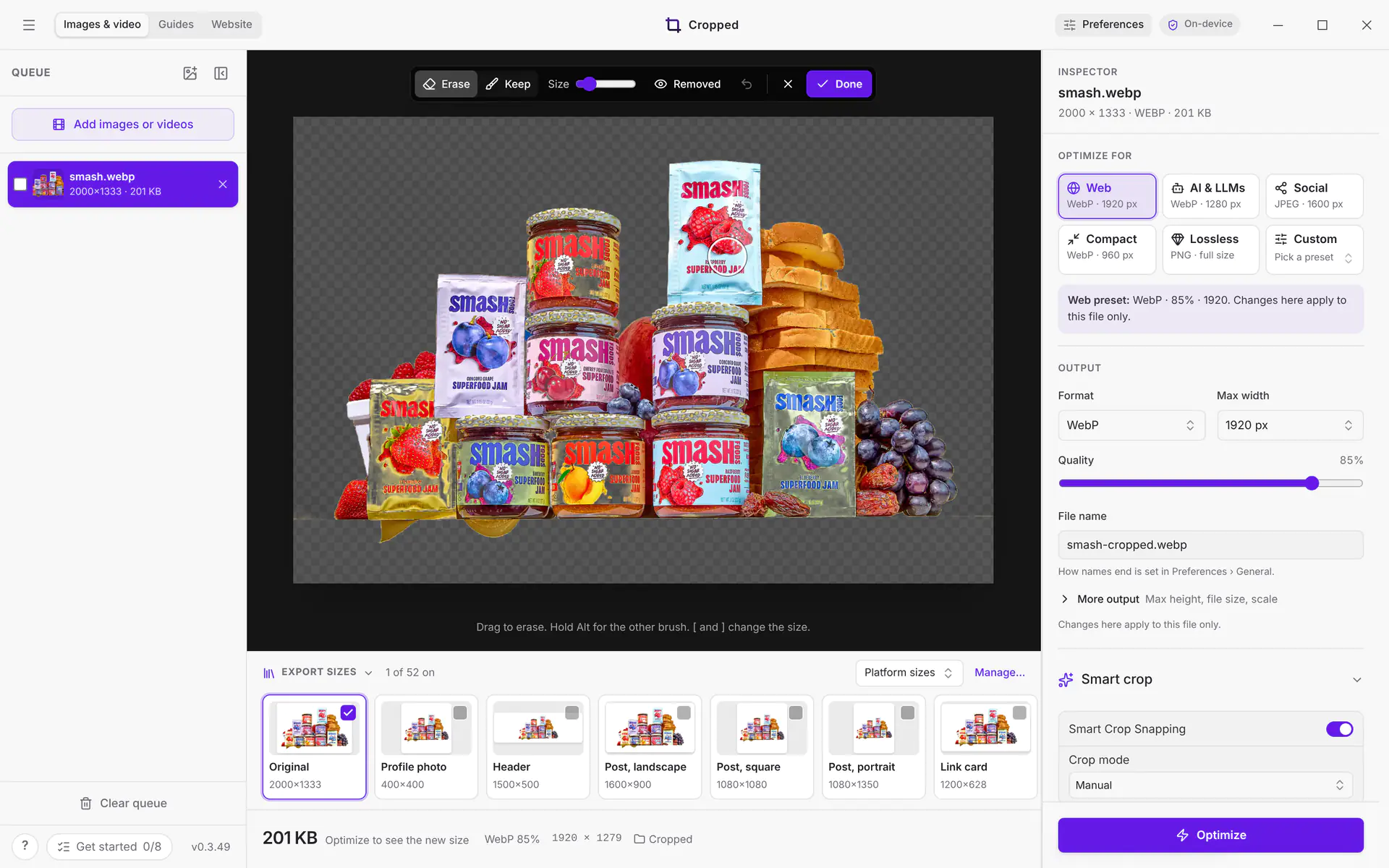
Remove a background
Remove background works the same as on the Mac: see Remove a background, including the Feather and Edge sliders. In the edge brush, hold Alt for the other brush, press Ctrl + Z to undo a stroke and Enter for Done. The first time, Cropped downloads its background model (about 71 MB); after that it works offline and runs on the processor. It needs about 6 GB of memory while it works, so on computers with less than 12 GB it can be slow; Cropped says so under the button. Background removal is in Beta.
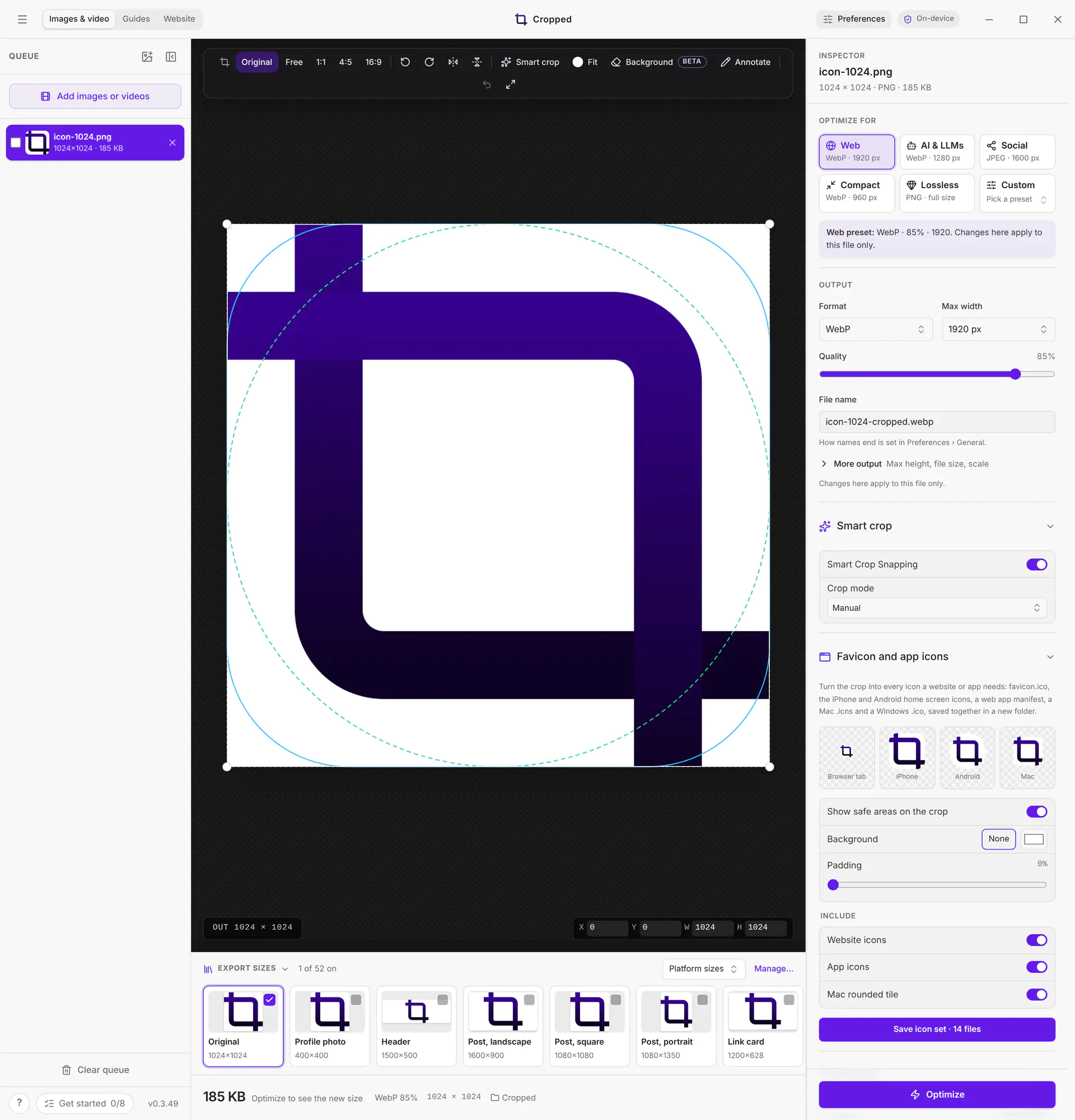
Favicon and app icons
This is the same on Windows as on the Mac, and it makes every file on every system, including a Mac .icns. See Make a favicon and app icons.
Website capture
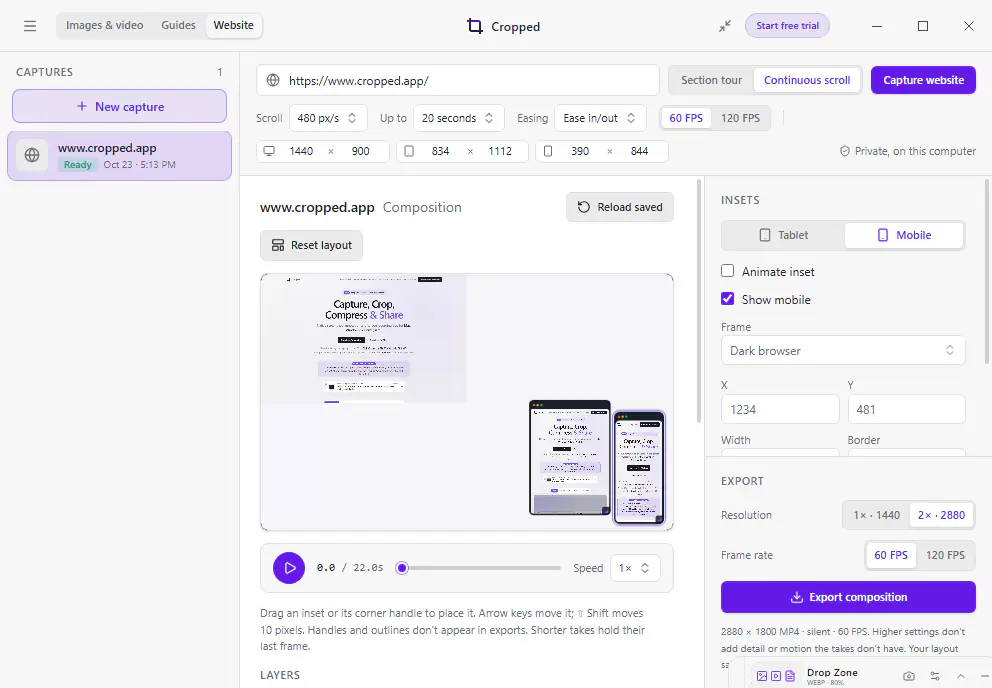
Choose Website at the top of the Studio to record a site at desktop, tablet and mobile sizes, as a section tour or a continuous scroll, then arrange the takes into one composition. On Windows, Cropped draws the page itself at 2× with Microsoft Edge's engine, which is part of Windows, so takes are smooth on any PC and need no screen recording. See Website capture.
Captions
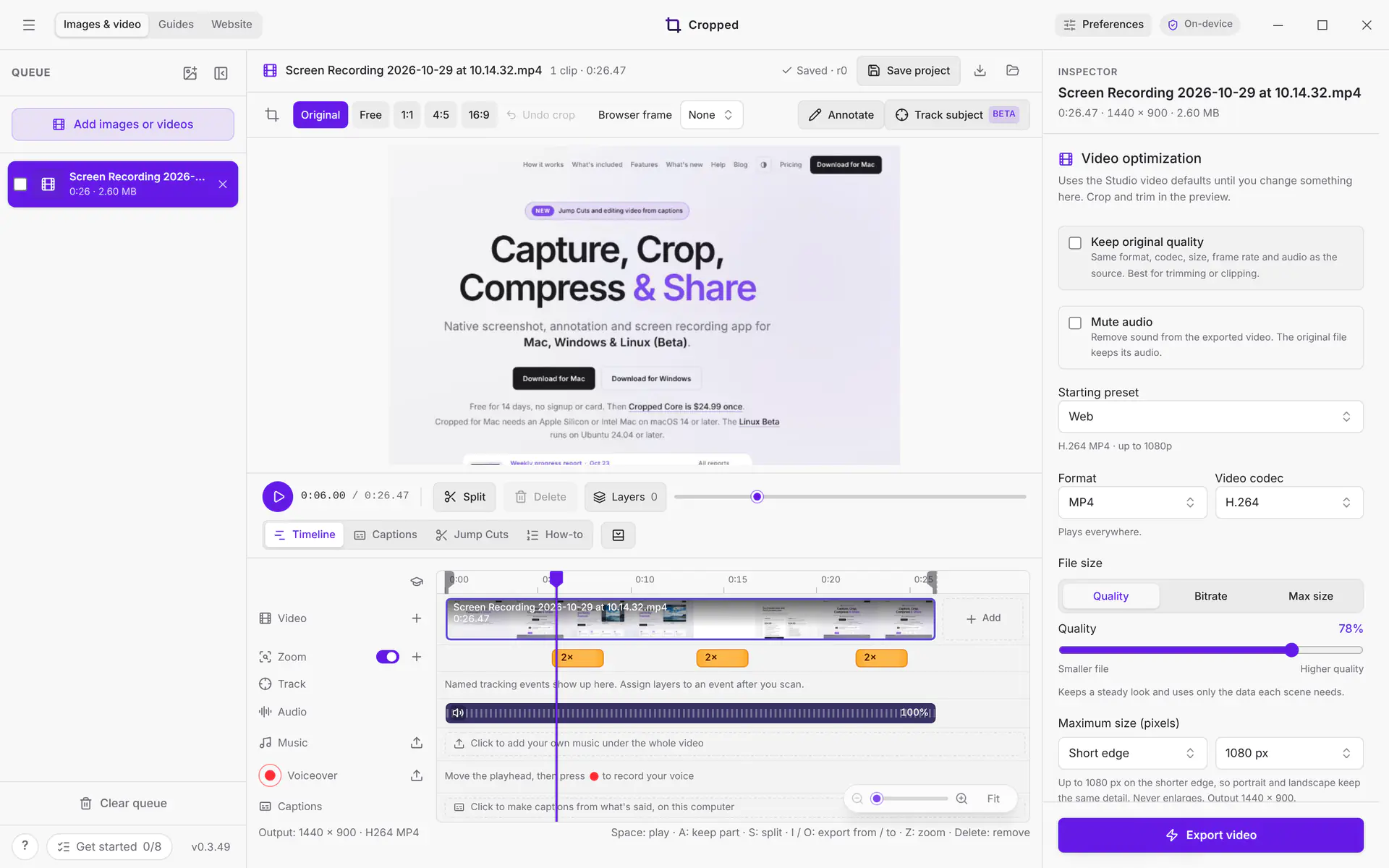
Captions work the same on Windows as on the Mac: click Captions under a video's preview, then Make captions. The speech engine is built into Cropped for Windows, and the model downloads once the first time. Fast is picked by default on Windows because Accurate runs on the processor here and is slower; pick Accurate for names, jargon and noisy recordings. See Add captions to a video.
Zoom in on clicks
Cropped for Windows remembers where you click while you record, and the Studio zooms in on each click, the same as on a Mac. Clicks on the recording bar are left out. See Zoom in on clicks.
Shortcuts
Wherever this guide shows ⌘ Command, use Ctrl on Windows. ⌥ Option (Option) is Alt, and ↩ Return (Return) is Enter.
| Action | Windows |
|---|---|
| Capture an area | Ctrl + Shift + 8 |
| Capture the full screen | Ctrl + Shift + 9 |
| Start or stop recording | Ctrl + Shift + 0 |
| Optimize | Ctrl + Enter |
| Show or hide the Drop Zone | Ctrl + Shift + D (in the Studio or the Drop Zone) |
See Keyboard shortcuts for the full list.
What's different
For Mac, Windows and Linux side by side, see Feature support on Mac, Windows and Linux.
| Mac | Windows | |
|---|---|---|
| Menus | The menu bar | The menu button at the top left of the Studio: File, Capture, Window, Help and Quit |
| Minimize, maximize and close | Traffic lights at the top left | Buttons at the top right of the Studio and Annotate windows. Double-click the title bar to maximize. Closing a window only hides it; to quit, choose Quit Cropped from the menu button or press Ctrl + Q. |
| Window capture | Just the window, with its shadow, even when covered | The window's area as you see it, without a shadow. See Capture a window. |
| Record computer sound | Yes | Yes |
| Record the microphone | Yes (macOS 15 or later) | Yes |
| Countdown timer before a capture | Yes | Not available |
| Camera bubble in recordings | Yes | Not available |
| Zoom in on clicks | Yes | Yes |
| Website capture | Live recording or 2× design render | Always the 2× design render, with Microsoft Edge's engine |
| AI apps recording a window | Just that window, even when covered, with optional app sound | The window's area on screen, with optional app sound on Windows 11 (silent on Windows 10) |
| AI apps reading text in screenshots | Yes | Not yet |
| Getting Started | Help › Getting Started | The menu button › Help › Getting started, or ? at the bottom left of the Studio |
| Use the system screenshot keys (⇧ Shift + ⌘ Command + 3, 4 or 5) | Optional | Not available |
| Drag a whole batch out of the Drop Zone | Yes | Drag files one at a time from Recent |
| Video encoding | Apple's built-in encoder | NVIDIA, Intel or AMD graphics encoder when available; Windows' own encoder on Arm PCs |
| Background removal | Built into macOS (subject lifting) | Cropped's own BiRefNet model, downloaded once (about 71 MB), on the processor (slower) |
Where files are saved
- Optimized files: Downloads\Cropped
- Capture history: %APPDATA%\Cropped\Captures
- Undo moves files to the Recycle Bin.
Windows on Arm
Surface Pro X, Surface Pro 9 with 5G, Surface Pro 11, Surface Laptop 7 and other Snapdragon PCs run Arm processors. Cropped for Windows is a 64-bit (x64) app, so Windows translates it with Prism. That works on Windows 11 24H2 or later with the December 2025 updates or newer; earlier versions of Windows 11, and Windows 10, cannot run Cropped's runtime and the app closes as soon as it opens. Install Windows updates from Settings › Windows Update, then open Cropped again.
Translated apps run slower than native ones. Screenshots and annotation feel the same, but video previews and exports take longer, and the graphics encoder is not used: recordings and exports use Windows' own H.264 encoder in software. Preferences › Video › Your computer shows "Running through emulation" on these PCs. A native Arm version is not available yet.
If Cropped closes by itself
Cropped keeps a short log of what it was doing on this computer only, at %APPDATA%\Cropped\logs\cropped.log (for Cropped Alpha, %APPDATA%\Cropped Alpha\logs). Nothing is sent anywhere by itself.
If Cropped quits unexpectedly or something stops working, open Preferences › Bug report, choose Report a bug and leave Attach system details and the recent app log ticked. Before anything is sent you see the exact lines that go: your Windows version, processor and memory, whether Cropped runs through emulation, and the end of the log with file paths, emails and links removed. Untick the option to send the message alone.
If capture doesn't work
If Cropped says capture needs a reinstall, download the latest installer from cropped.app and run it again. Your settings and license are kept.
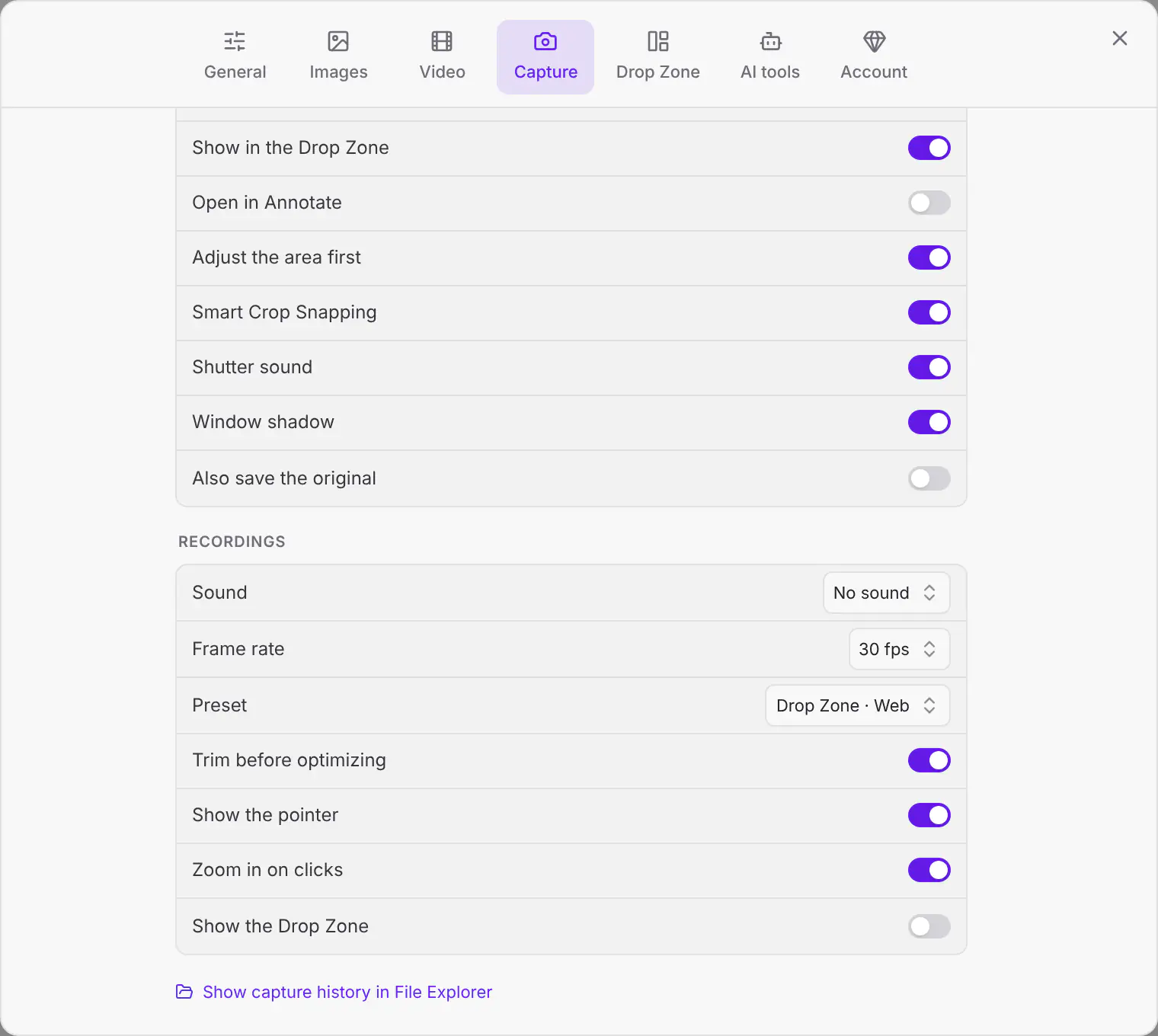
If recording says "No microphone was found", connect a microphone and check that Windows allows apps to use it in Settings › Privacy & security › Microphone, or choose No sound in Preferences › Capture.
Still stuck? Click the ? button at the bottom left of the Cropped Studio to ask, send us a message, or request a feature.