 Cropped
Help
Help / Crop, optimize & export
Track a subject in a video
Track subject (Beta) follows a region you choose in a video. Use it to keep that subject a similar size in frame, or to move a layer with it. Scanning runs on your computer. It does not upload the video, need an API key, or download a model.
Subject tracking is in Beta on Mac, Windows and Linux (Beta), and Windows and Linux are new to it. If a scan loses your subject or lands in the wrong place, tell us with Send feedback in the tracking bar, or in Preferences › Bug report. On a Mac the scan uses Apple Vision. On Windows and Linux it uses Cropped's own tracker, which reads the video with Cropped's video engine and needs nothing extra installed. Both save the same tracking events, so a project scanned on one computer opens on another.
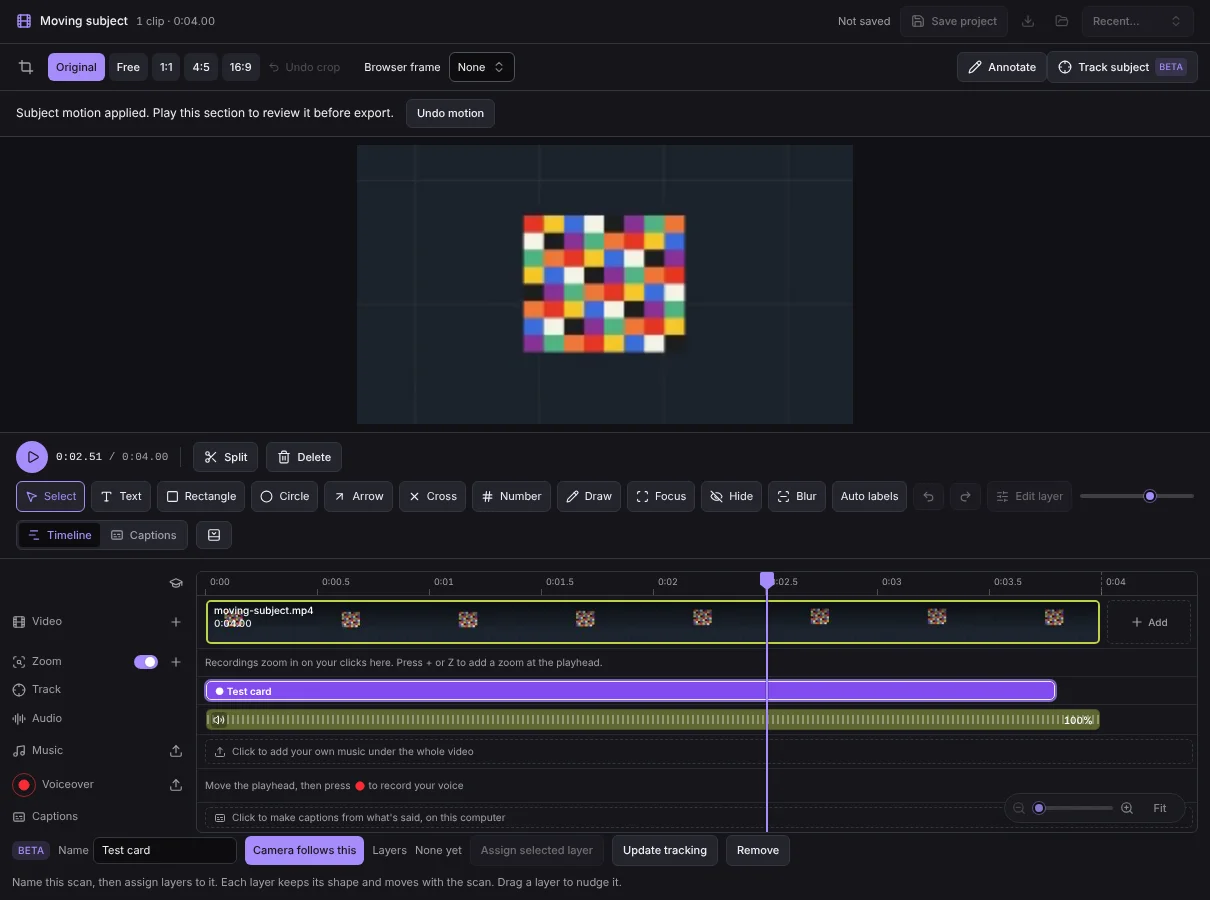
Select and scan
Open the video in the Studio.
Move the playhead to a clear view of the subject in a clip that stays on screen.
Click Track subject above the preview. It is marked Beta.
Drag a snug box around the subject.
Name the tracking event. The name is what you assign layers to later.
Choose Keep in frame or Stick overlay. Keep in frame follows the subject with the camera and lets you pick how close the first frame is (1.25× to 3×). Stick overlay leaves the picture still. Choose No layer yet, New circle on the subject, or a layer you already made. A stuck layer keeps its own proportions, so a circle stays a circle.
Set Smooth, then click Scan. The scan follows the subject for as long as that clip stays on screen, up to three hours. Cancel stops it without changing the edit.
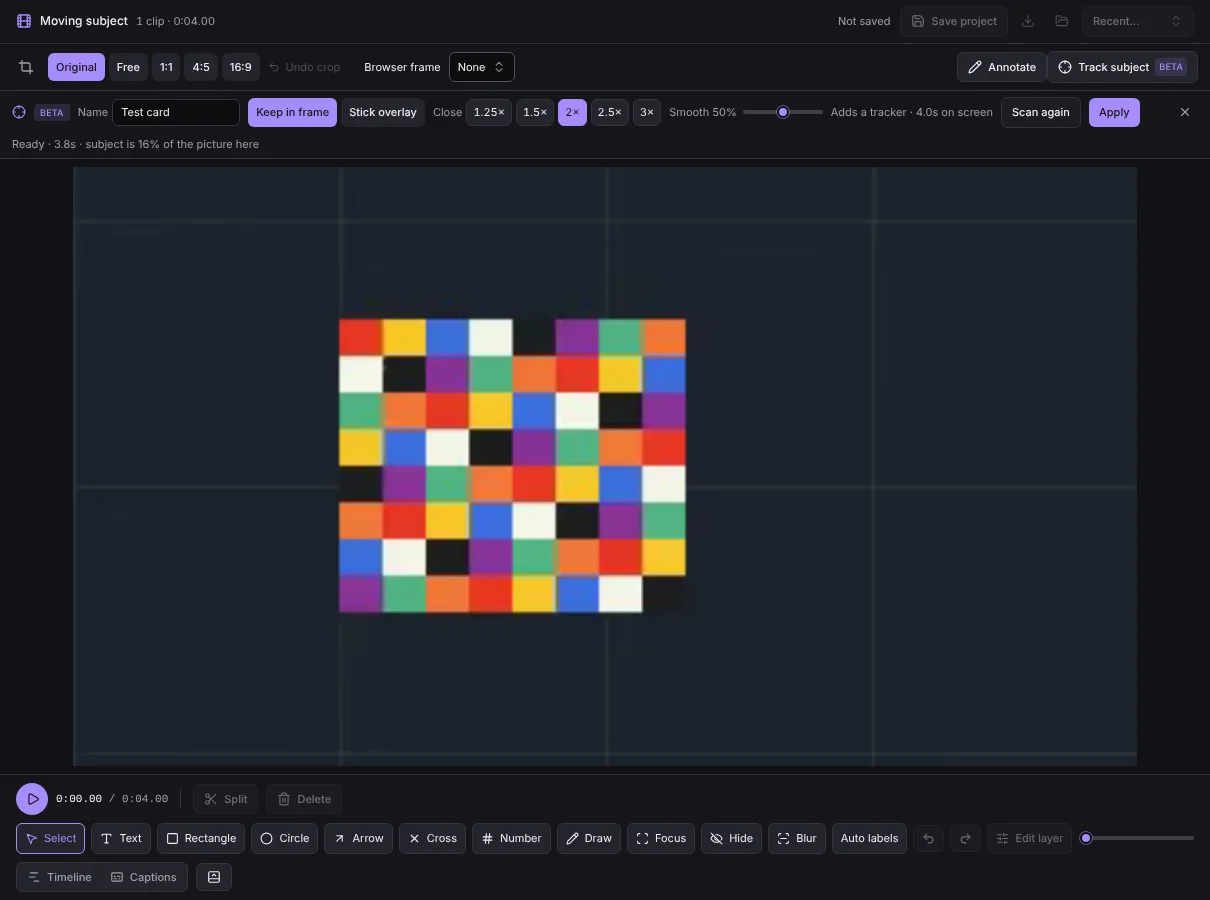
Draw a snug box, name the scan, then Scan and Apply. Click Apply. The event appears on the Track lane. Play it back before you export.
Several events
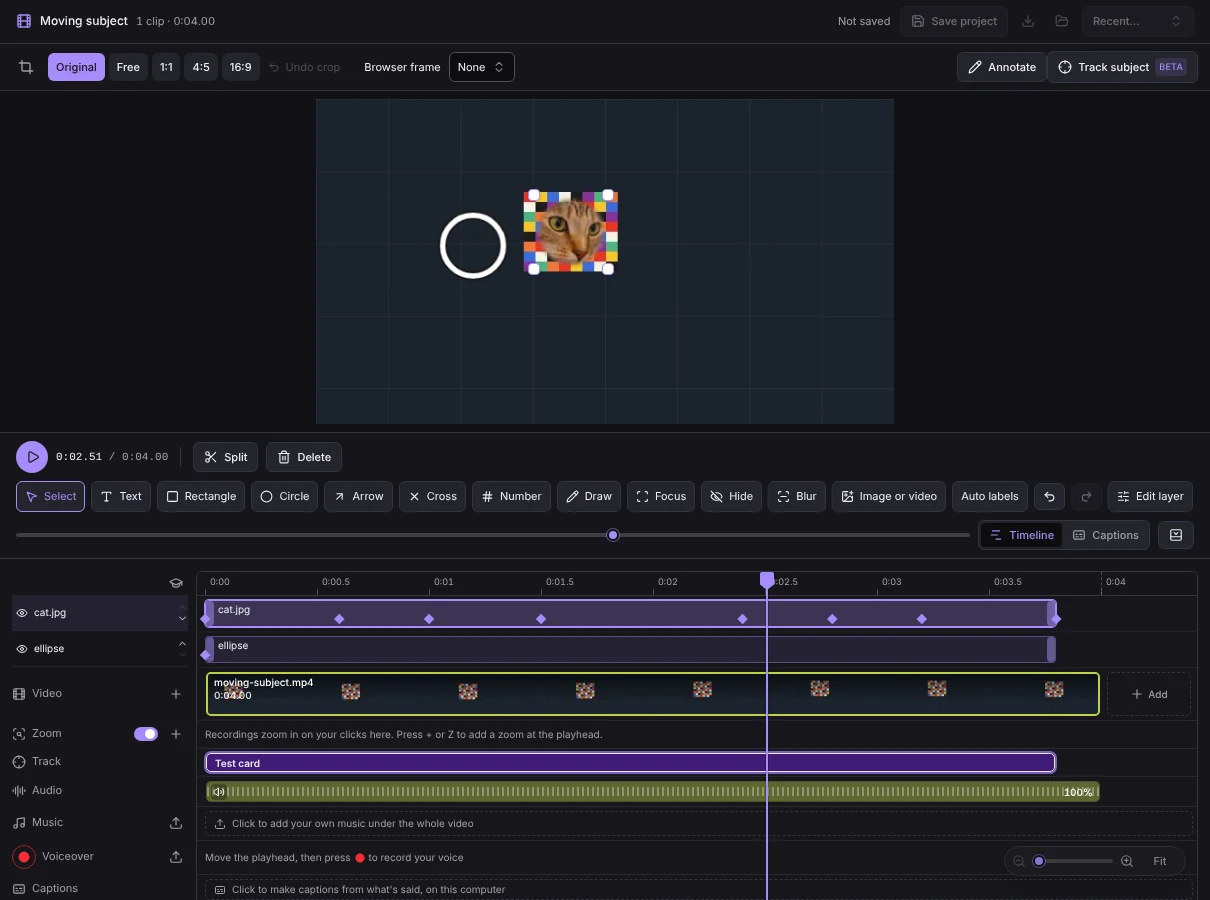
A video can hold more than one named event. Drag a bar to move when it follows, or drag either end to use more or less of the scan. Focus makes the camera follow one event and leaves your other zooms in place. Assign the selected layer from the timeline, or change a layer's type without losing the path.
To put a different layer on the subject, select the event and use Swap for… next to the layer that follows it. The layer you pick, for example a picture or a video, takes its place at its size, and the old layer stays where it was. Picture and video layers can follow a subject like any other (see Video annotations).
From an AI app
track_subject measures the same event and saves it on the project. Read it back with video_project and use editor.tracks to rename it, move its start and end, or point it at another layer.
When the subject is lost
The scan stops when confidence drops or the subject leaves the frame. On Windows and Linux it also stops when the subject changes size or look suddenly, or is covered for a moment; start another scan after that point. Review the last accepted moment and scan again with a new box if you need a later section. Tracking follows the region you selected. It does not name people or recognize someone in a different video.
See also Edit videos, Combine videos, and Zoom on clicks.
Still stuck? Click the ? button at the bottom left of the Cropped Studio to ask, send us a message, or request a feature.