 Cropped
Help
Help / Capture & annotate
Share a screenshot or video as a link
Send anyone a link to a screenshot or video. They open it in their browser, no account needed, and can leave comments, to-dos and questions on it.
Quick answer: in the Drop Zone, click a capture, click Share link and click Copy link. The link is on your clipboard at once, and the file uploads while you paste it. Links expire after 30 days unless you pick another length.
Want a link for every capture without opening anything? Set Copy after a capture to A share link in Preferences › Capture. See Copy a link right after every capture.
You can also share any picture or video you drop on the Drop Zone, and anything you optimize or export in the Studio. See Share a dropped file and Share from the Studio.
Share link comes with Cropped Pro and Cropped Platinum. Anyone can open a link and comment on it for free. It works the same on Mac, Windows and Linux.
Cropped storage
Your shared files are kept for you in Cropped storage. There's no account to make and nothing to set up: Pro and Platinum include 20 GB for shared files.
The first time you share, Cropped asks you to turn it on. You can also do it ahead of time:
- Open the main Cropped window and open Preferences (on a Mac it's called Settings): click Settings at the top right of the window (Preferences on Windows and Linux), or press ⌘ Command + , (Windows and Linux: Ctrl + ,).
- Click the Account tab and scroll to Sharing.
- Click Use Cropped storage.
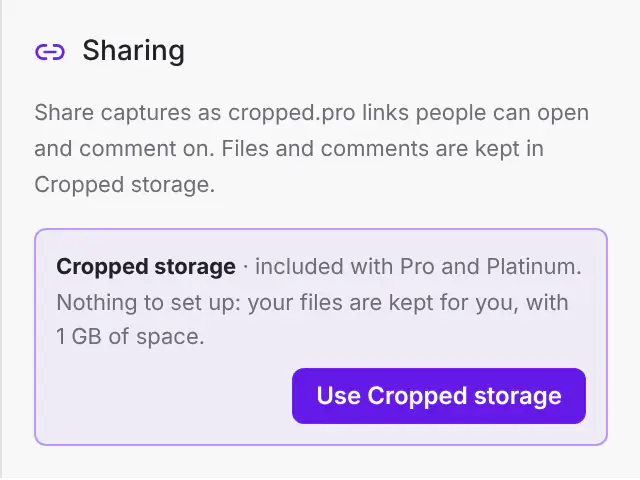
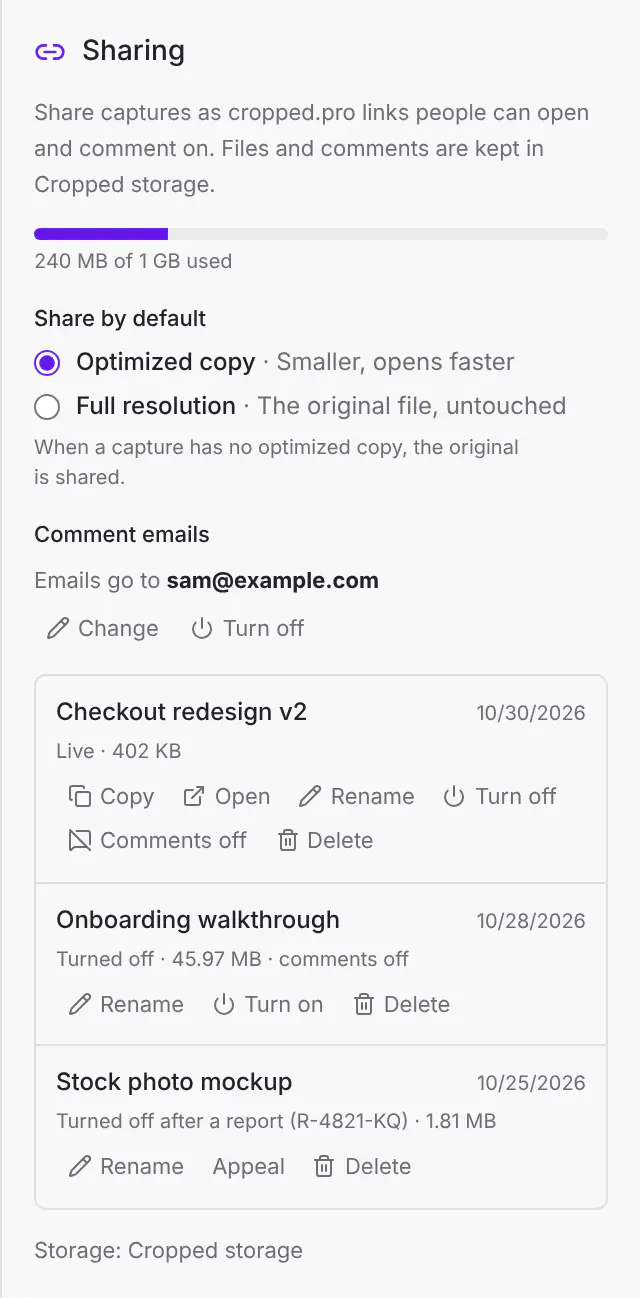
The bar in Sharing shows how much of your space you've used. When a link expires, its file stays in your storage until you delete the link, so you can open it again any time. Deleting a link frees its space right away.
Already connected your own Cloudflare R2 or S3 storage in an earlier version? It keeps working as before, and Sharing shows it.
Share a capture
- In the Drop Zone, click a screenshot or recording to open it.
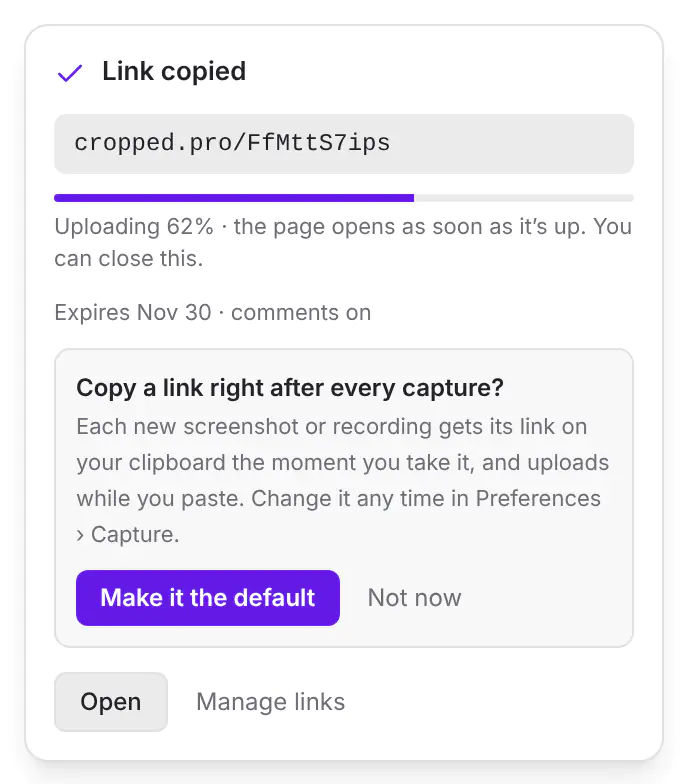
- Click Share link. The link is made and copied to your clipboard straight away, so you can paste it anywhere while the file uploads.
You see Link copied, with the link, a Copy link button to copy it again (it says Copied for a moment), and how far the upload has got. You can close it: the upload carries on. Everything on the card can still be changed, and the link changes with it:
- Name: the name people see at the top of the page and in the browser tab. Click it and type.
- Send: Optimized (smaller, opens faster) or Full (the original file). Each shows its size, and you only see this when the capture has an optimized copy. Switching makes a new link in place of the first one and copies that instead.
- Link expires: In 30 days to start with. Pick In 1 day, In 7 days, In 90 days or Never.
- Allow comments: on to start with. Turn it off for a link people can only look at.
Open shows the page in your browser, and Manage links lists every link.
Copy a link you already made
Something you shared before keeps its link. Click Share link on it again and that same link is copied; nothing new is made. In the Drop Zone's Recent list, a file that has a link shows its link icon in color: click it and the link is copied right there, with Link copied beside the icon. Option-click it (Alt-click on Windows and Linux) to open the Link copied card instead. To send a fixed file to the same link, click Send this file as a new version of the link… on the card.
The first time you make a link, the card asks Copy a link instead of the picture after every capture? Captures copy the picture unless you choose otherwise, so Keep copying the picture is the highlighted choice. Click Copy links instead to get a link for every new capture from now on. It only asks once; the setting is Copy after a capture in Preferences › Capture.
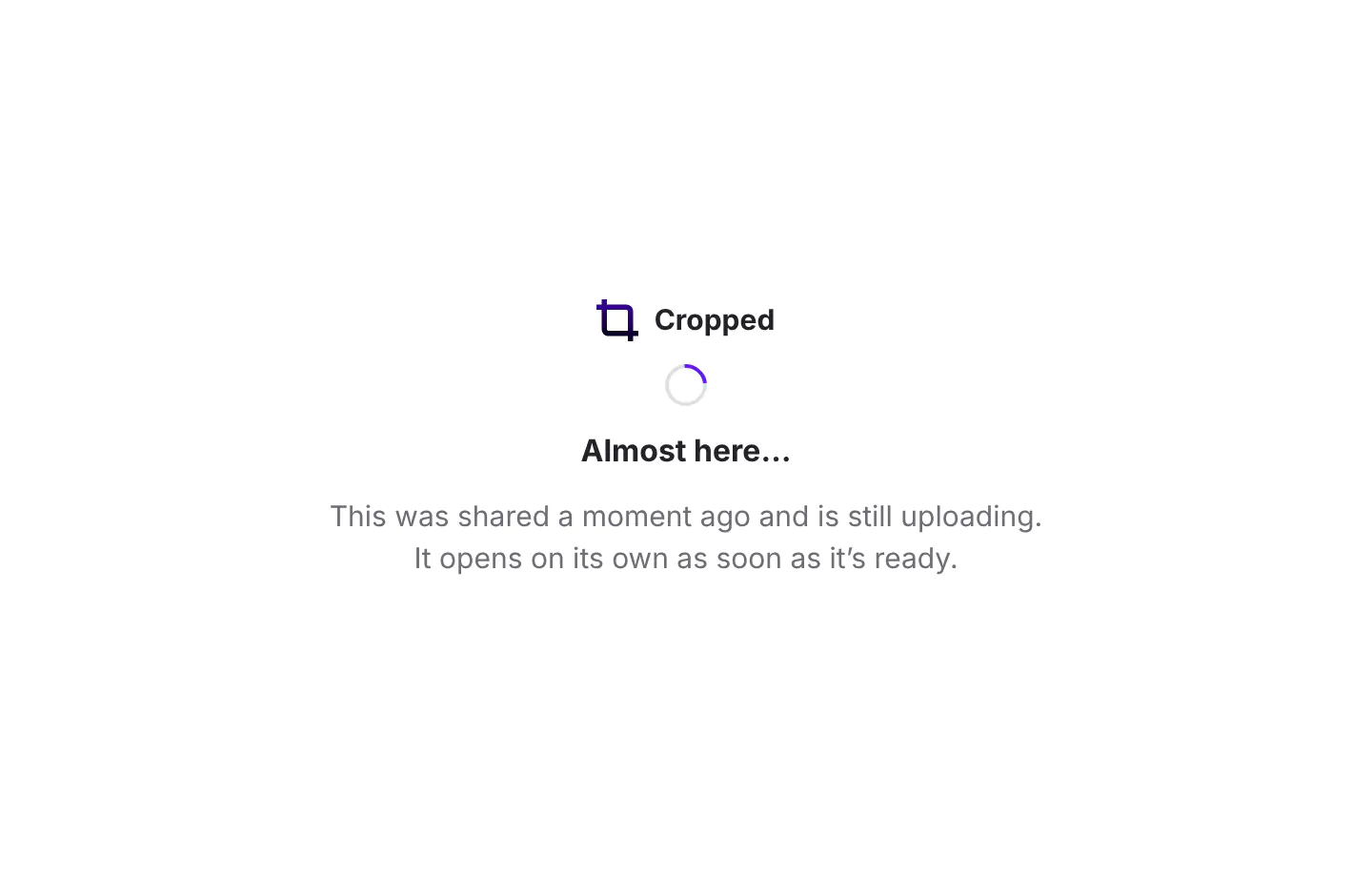
If someone opens the link before the upload is done, they see Almost here…, and the page opens on its own the moment the file is up.
If the upload can't finish (say your connection drops), Cropped tells you, removes the link so it doesn't sit there broken, and you can share again.
Pictures can be up to 100 MB. A video can use as much of your Cropped storage as is free.
Each new link uses your last Link expires and Allow comments choices. To choose which file a new link sends, open Preferences › Account › Sharing and pick Share by default.
Copy a link right after every capture
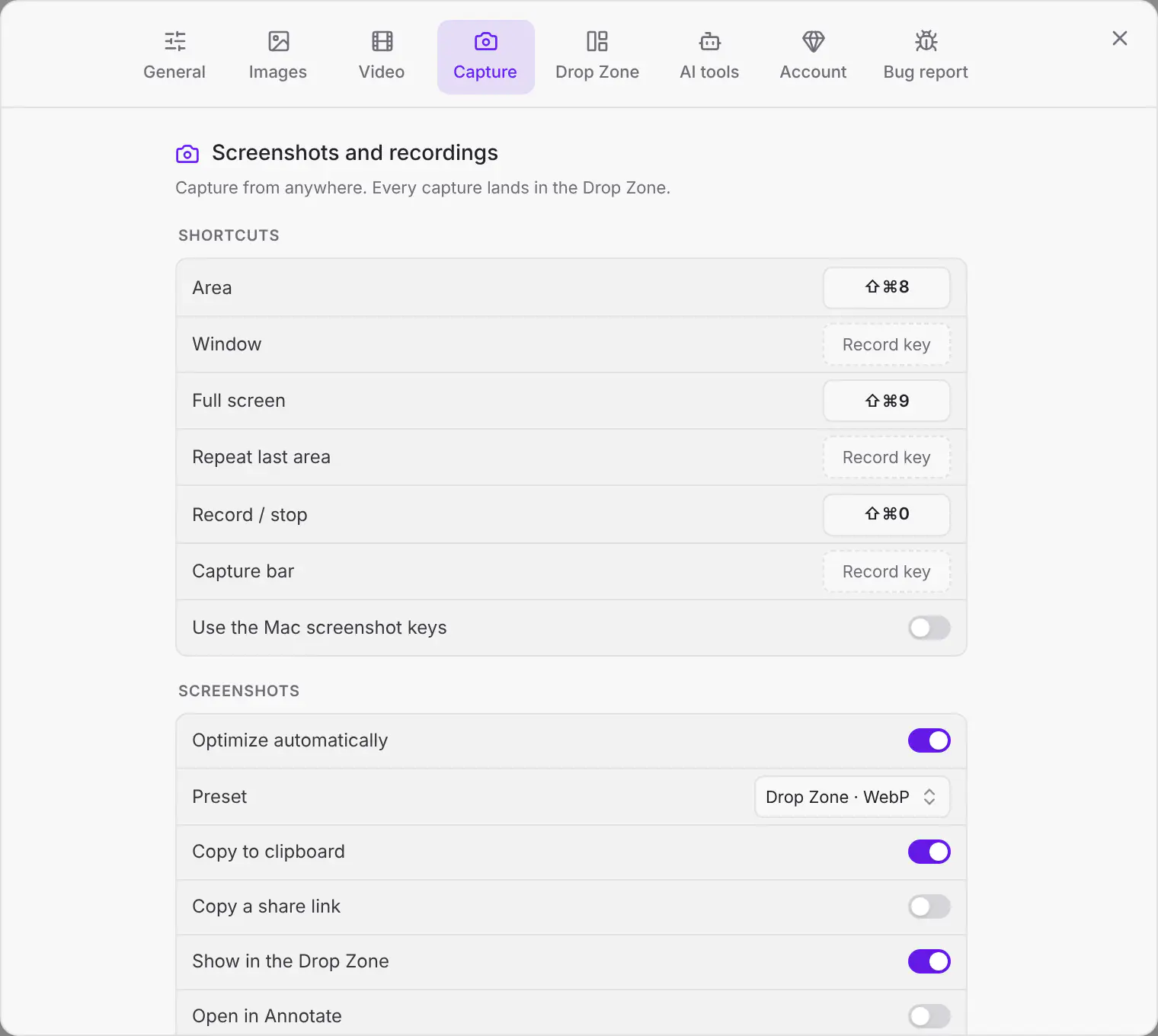
With Copy after a capture set to A share link, every new screenshot and recording puts its cropped.pro link on your clipboard the moment you take it, instead of the picture. Paste it straight into a chat or an email; the file uploads in the background and the page opens as soon as it's up. Link copied flashes in the Drop Zone each time.
- Open Preferences › Capture (on a Mac it's called Settings).
- Under Screenshots, set Copy after a capture to A share link. (Or click Copy links instead on the card after your first link.)
- The link shares the capture as you took it, at full quality, because that file is ready at once. Your last Link expires and Allow comments choices are used.
- A screenshot that opens in Annotate gets its link when you save your edits.
- A recording that waits for trimming (Trim before optimizing is on, as it is to start with) gets its link when you click Trim & optimize (or Optimize) on its card, and it shares the trimmed copy.
- If a link can't be made (you're offline, or your Cropped storage is full), the picture is copied as usual and the Drop Zone says why.
- Pasting into Claude or another AI chat this time? Click Copy the picture instead under Link copied in the Drop Zone. The screenshot replaces the link on your clipboard, and the link still works. AI chats read the picture itself, not the page behind a link, so the picture is the better paste there.
- Want the picture every time again? Click Always next to it. Captures go back to copying the picture, the same as choosing The picture in Preferences › Capture.
It works the same on Mac, Windows and Linux, and comes with Pro and Platinum.
Share a dropped file
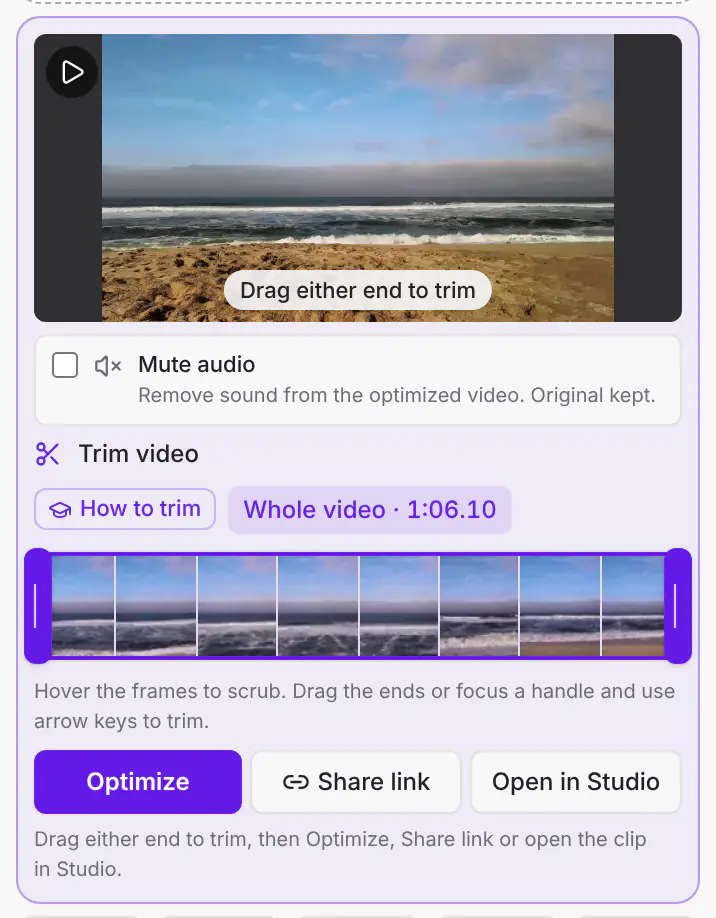
Drop a video, get a link. Drop one video on the Drop Zone and it waits on a card so you can trim it. Click Share link on that card. The video as you dropped it goes straight to the Share link sheet. If you trimmed it or turned its sound off, Cropped optimizes it first so the link has your trim, then opens the sheet.
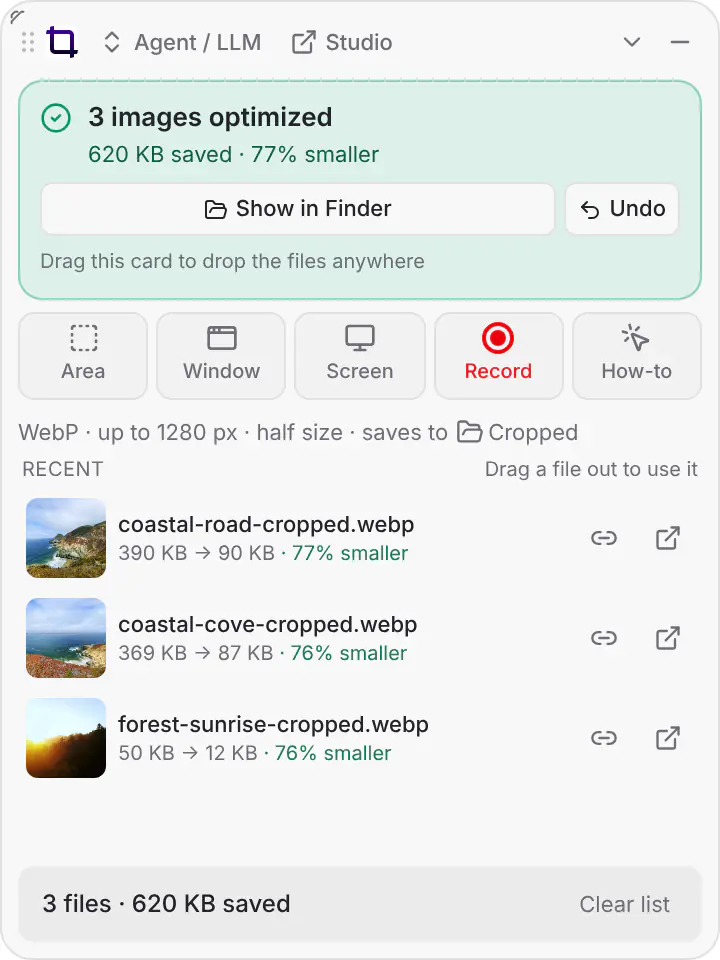
Anything in Recent. Every picture and video under Recent has a link button (it looks like a chain link) next to Open in Studio. Click it to share that file. The sheet offers the Optimized copy and, if the file you dropped is still where it was, the Full original.
A link for every drop. Click the preset name at the top of the Drop Zone and turn on Copy a share link. From then on, every picture and video you drop is optimized with that preset and its link goes on your clipboard as soon as it's made. Drop several files and you get one link per line. The files upload in the background, and each page opens as soon as its file is up. Your last Link expires and Allow comments choices are used.
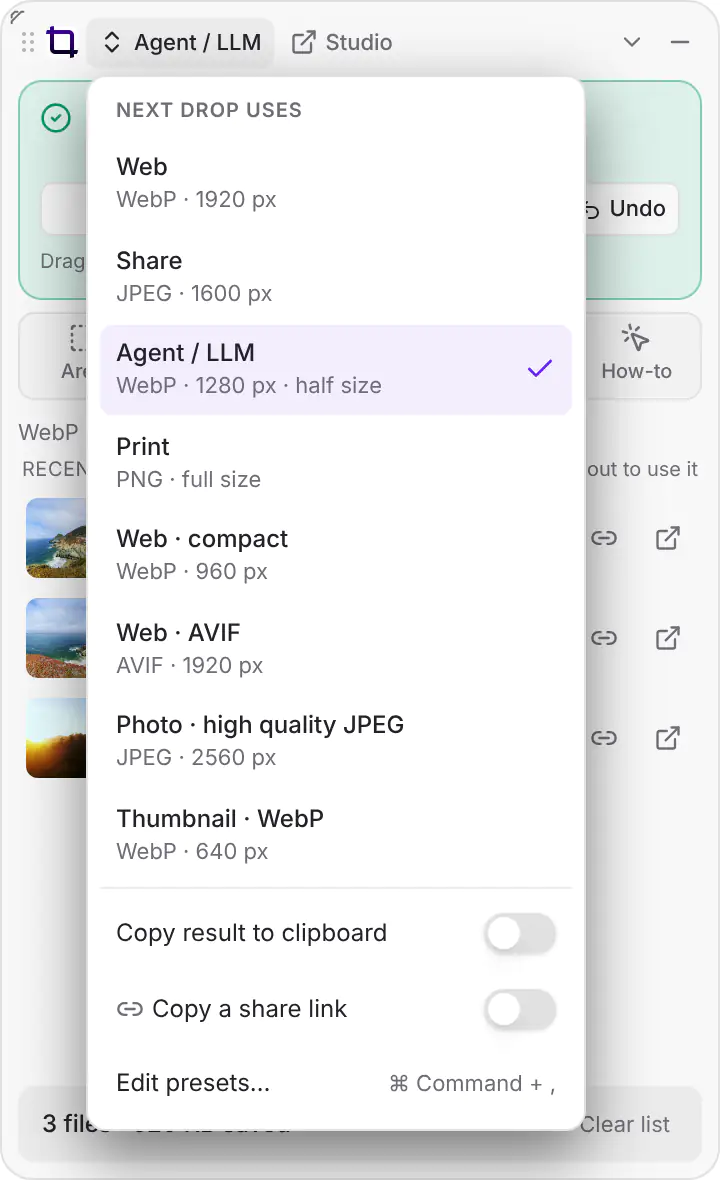
- With the switch on, a single dropped video or picture skips its card and goes straight to a link. Turn the switch off to trim first.
- PDFs are optimized and saved as usual, without a link.
- If no link can be made (you're offline, or your storage is full), the files are still saved and the Drop Zone says why.
Share from the Studio
- Optimize a picture, or export a video, as usual.
- Click Share link. It's at the foot of the Inspector, under Show in Finder (Show in File Explorer on Windows), for pictures and videos. Pictures also have it under the picture.

- The sheet offers what you saved (Optimized, with your crop and edits) and the file you started from (Full). Click Copy link.
Before anything is saved, Share link shares the file as it was imported, and the sheet says so. Export first to share your edits. A sequence of several clips can only be shared once it's exported.
What you can share
Pictures (PNG, JPEG, WebP, AVIF and GIF, including GIFs made from a video) and videos (MP4, MOV, M4V and WebM). Pictures can be up to 100 MB and videos up to 5 GB. PDFs, HEIC photos and audio can't be shared as links yet: optimize a HEIC photo to JPEG or WebP first, and it can be shared.
When a link expires
On the day it expires, the link stops opening. People who open it see This link has expired. Links you made before link expiry came in never expire.
You can open an expired link again: in Manage links, click Open again… and pick a new length. Its file is kept until you delete the link.
What people see
The link opens a page at cropped.pro with your screenshot or video. Anyone with the link can:
- Watch or view it, on a phone or a computer, with no account.
- Leave comments with their name. On a video, comments are pinned to the moment they're about. On a picture, they can point at a spot.
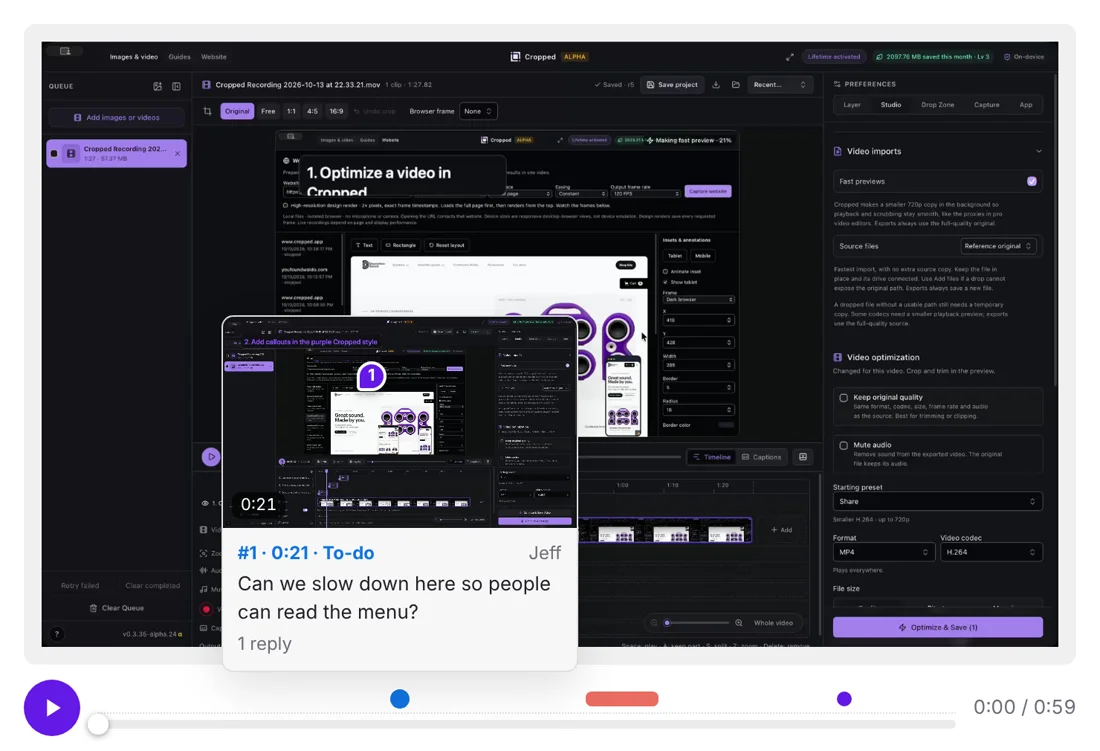
- Hover over a comment's dot on a video's timeline to preview it: you see the frame it's about, with its pin or box marked, and what was written. Hover over a pin on the picture to read its comment. Click either to jump there.
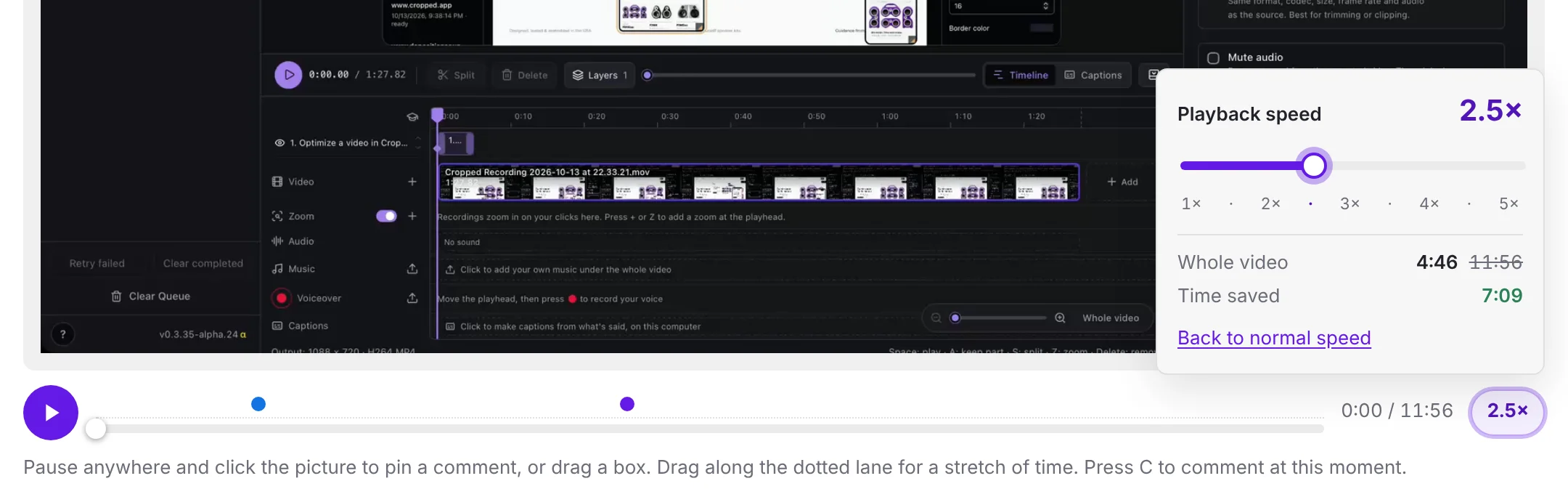
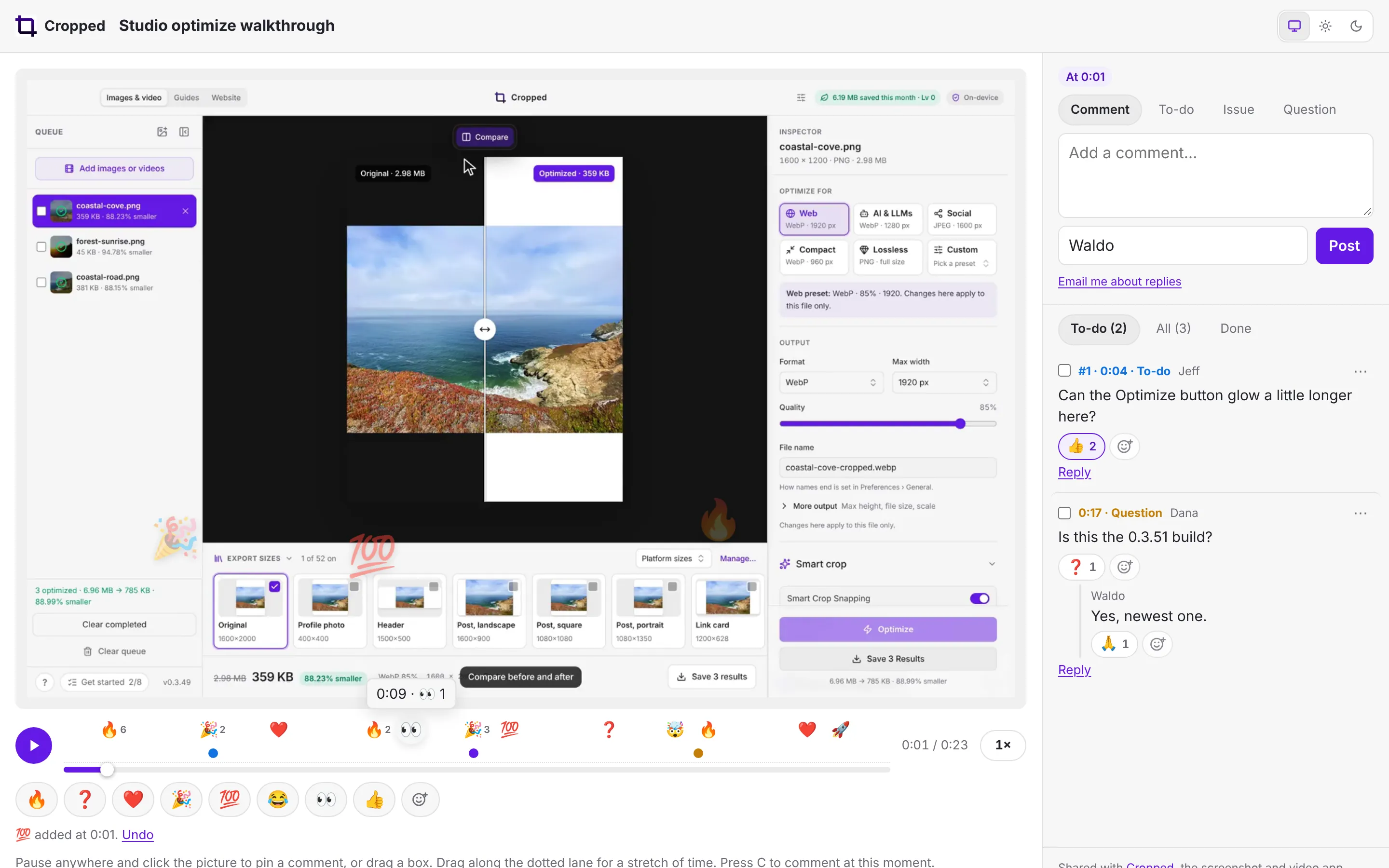
- Watch a video faster. Click the speed button next to the time (it shows 1×) and drag the slider from 1× up to 5×, in half steps. The panel shows how long the whole video takes at that speed and how much time it saves, plus how long is left from where they are. Shift + > and Shift + < also go faster and slower. Their browser remembers the speed for the next video.
- React with an emoji as they watch. Tap 🔥 ❓ ❤️ 🎉 💯 😂 👀 or 👍 under the video, or the smiley button for every emoji, and it floats up over the picture and lands on the timeline at that moment. See Emoji reactions.
- React to a comment or reply with any emoji.
- Mark a comment as a to-do or a question.
- Click Email me about replies and leave an email address, to hear about replies and new comments on that link. See Comment emails.
- Switch the page between light and dark with the three buttons at the top right: System, Light and Dark. It follows their device until they pick one, and their browser remembers the choice.
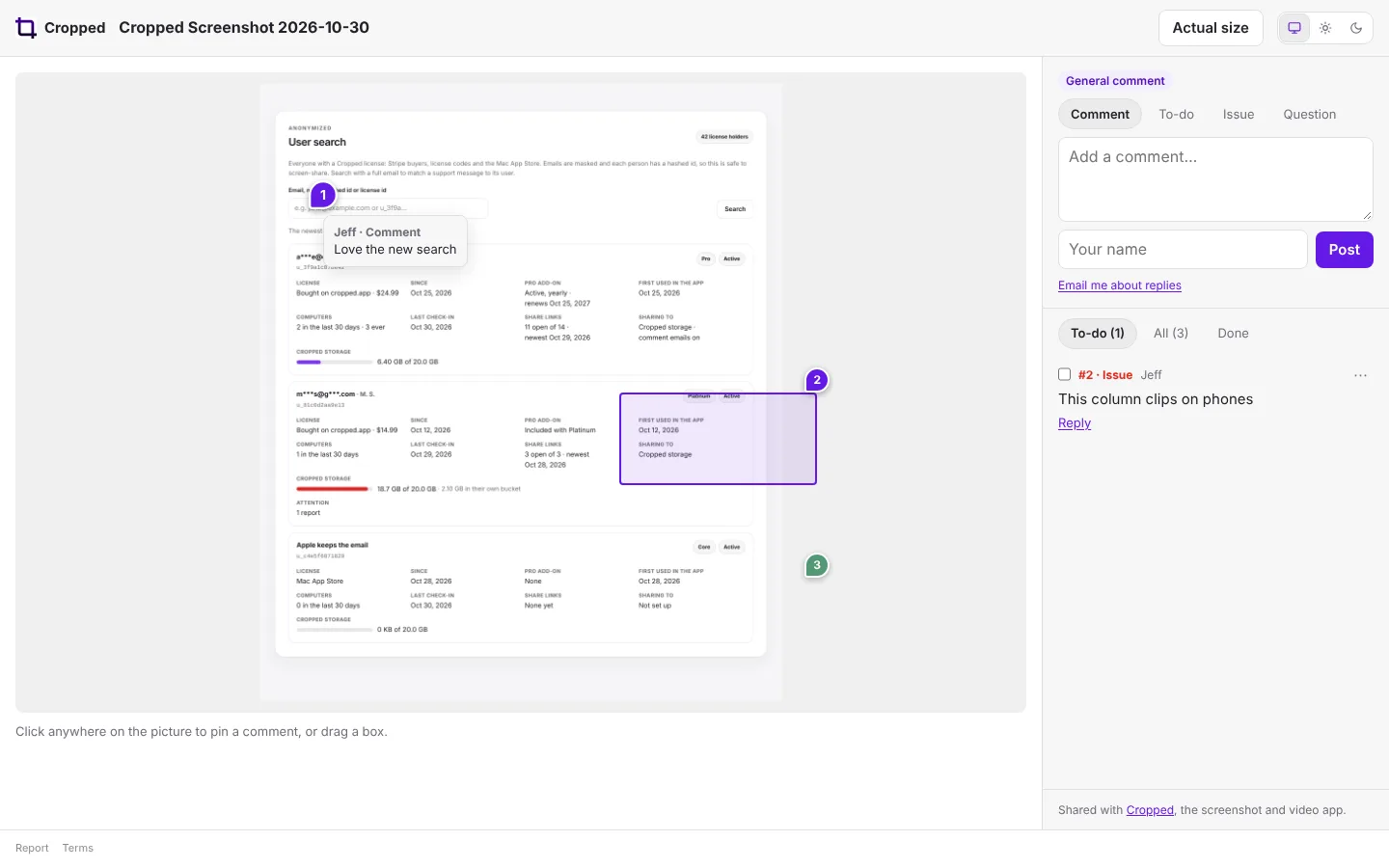
Comments are kept with the file.
Link previews that stay up to date
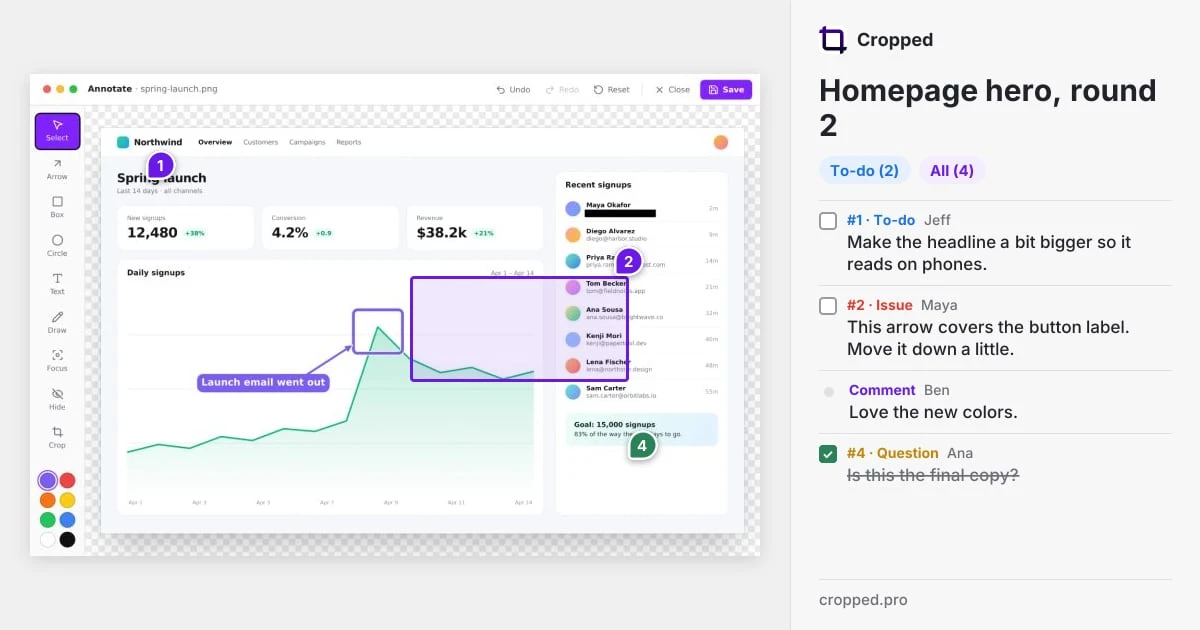
When you paste a cropped.pro link into Slack, iMessage, X, LinkedIn or an email, the preview shows the page as it is now: your picture (or a still from your video) with every comment pin and box on it, and the comments beside it with the open to-dos first. It counts what's left to do and how many comments there are.
The preview redraws itself whenever the page changes: a new comment, pin or box, a reply, a to-do ticked off, or a new name for the link. Paste the link again to show the latest. (Some apps keep the first preview they saw of a link for a while before they look again.)
A link that's turned off, deleted or expired shows no preview. A link pasted while its file is still uploading shows its name and Almost here… until the file arrives.
Copy the feedback as a to-do list
Click Copy to-do list above the comments on any cropped.pro link. Every comment is copied as a checklist you can paste into a task app, a doc, an issue or a message:
- Open to-dos, issues and questions come first, as boxes to tick, with the time on the video, the pin number and who wrote them.
- Replies sit under the comment they answer.
- Plain comments follow under Comments, and finished items under Done, already ticked.
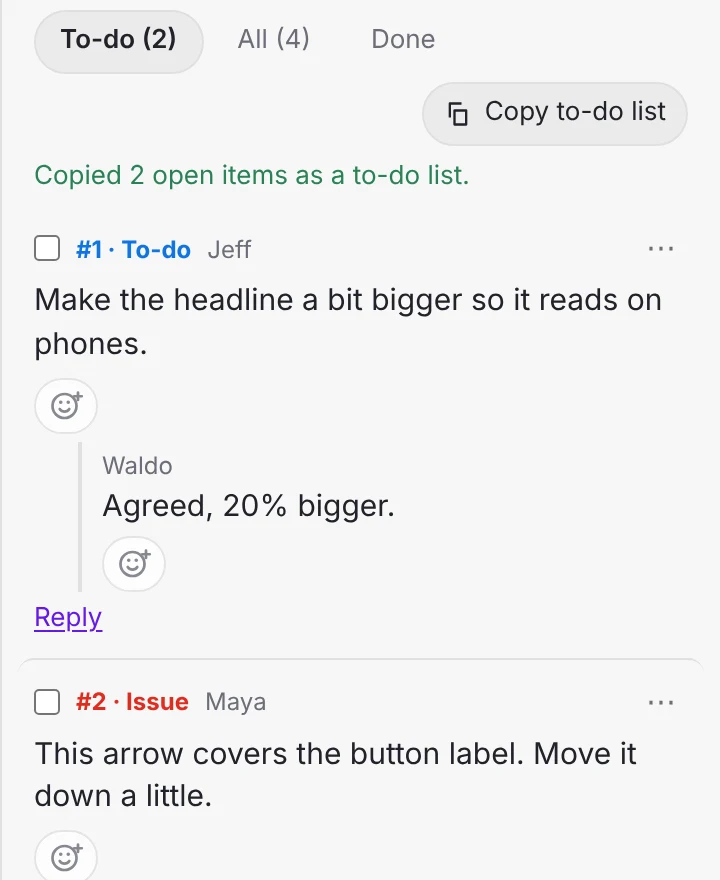
The list is in Markdown, so the boxes turn into real checkboxes in GitHub, Notion, Linear, Obsidian and most task apps. In your Library at cropped.pro/library, open a file and click Copy to-do list, or select several files and click Copy to-do list to get one list with a section for each.
Emoji reactions
People you share with can react with emoji, no account needed. It works on phones and computers, in light and dark.
While watching a video: tap an emoji under the video, or the smiley button for the full picker. The emoji floats up over the video and lands on the timeline at that moment. Everyone's reactions show above the timeline, grouped into short stretches with the most-used emoji and how many there were. Hover or tab to one to see the time and every emoji there, and click it to jump to that moment. While a video plays, other people's reactions float up as it passes their moment. Changed your mind? Click Undo right after reacting.
On a picture: tap an emoji under it. Each shows how many people picked it. Tap your own again to take it back.
On a comment or reply: click the smiley button under it and pick an emoji. Click an emoji someone already added to add yours, and click it again to take yours back. Hover over it to see who reacted.
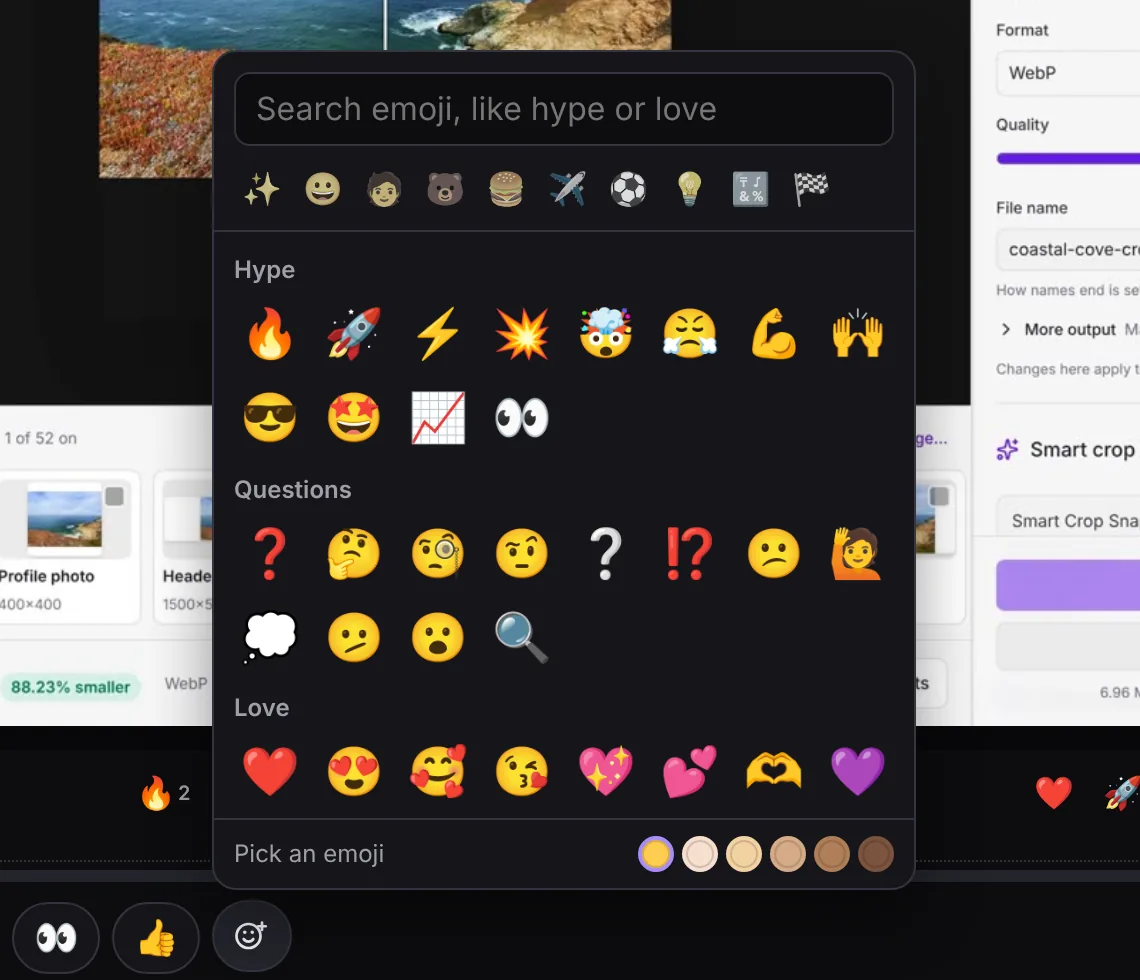
The picker opens on the ones people reach for most, grouped as Hype, Questions, Love, Celebrate and 100, then has every emoji by group. Type to search: words like hype, question, love, party or 100 find those groups first. Pick a skin tone with the circles at the bottom. Arrow keys move around the picker and Esc closes it. Your recent emoji come first next time.
Reactions follow the link's Allow comments switch: with comments off, nobody can react. Reactions are kept with the file, like comments, and are deleted with the link.
Comment emails
Get an email when someone comments on a link you shared.
- Open Preferences › Account › Sharing. Under Comment emails, type your email address and click Turn on. (Right after you make a link, the Link copied card offers the same thing.)
- Open the email from Cropped and click Confirm. Nothing else is sent until you do.
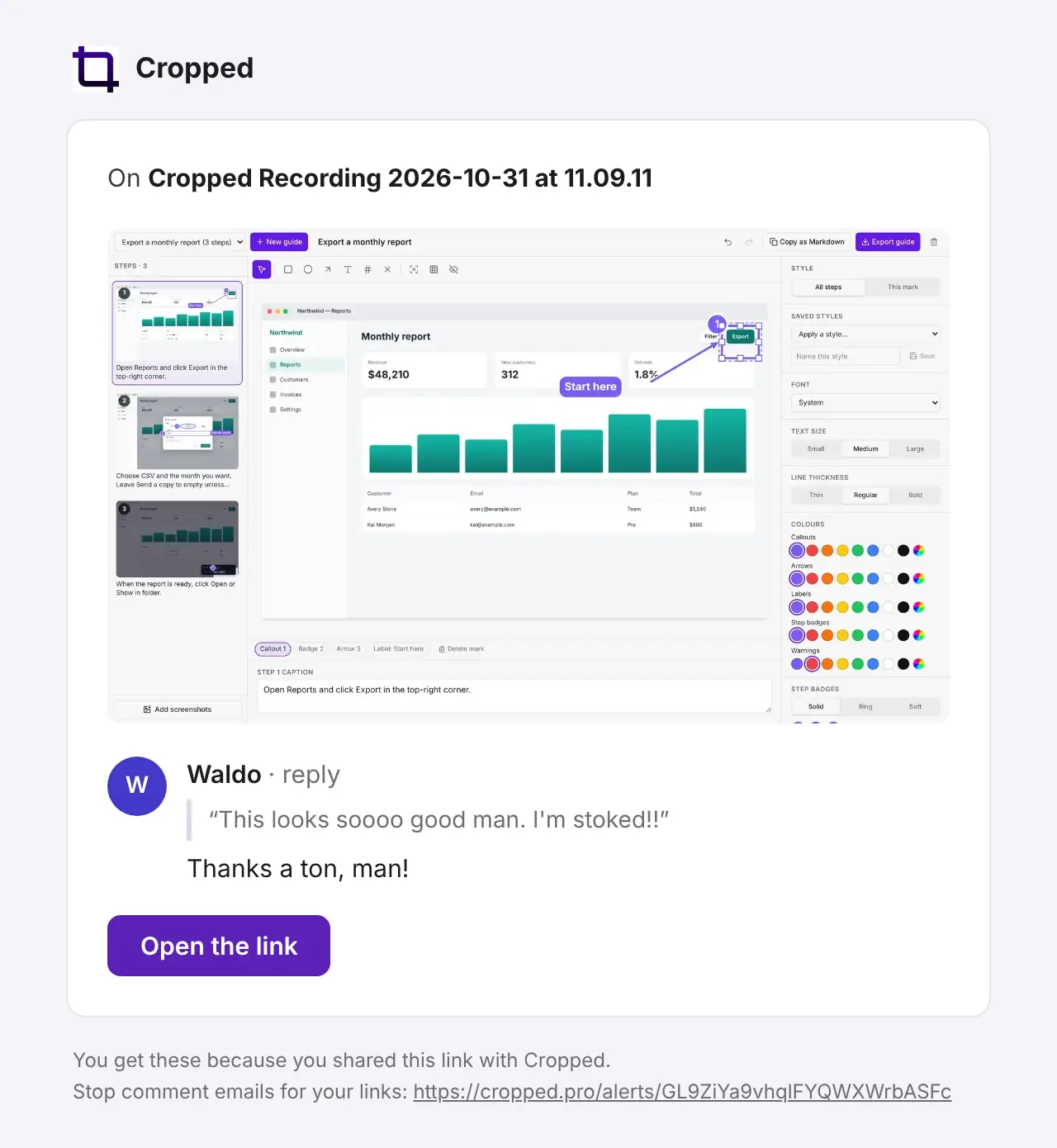
From then on, each new comment, to-do, question or reply on any of your links sends you an email with what was written, who wrote it (with their initials in a colored circle), a still from the video, and a button to open the link. If several comments arrive close together, you get one email with all of them about ten minutes later, not one each.
To change the address or stop the emails, click Change or Turn off in Comment emails. Every email also has a stop link at the bottom.
People who comment
Anyone commenting on your link can click Email me about replies under the comment box and leave their address. They confirm it from an email first, then hear about replies and new comments on that one link, never their own. Every email has a stop link.
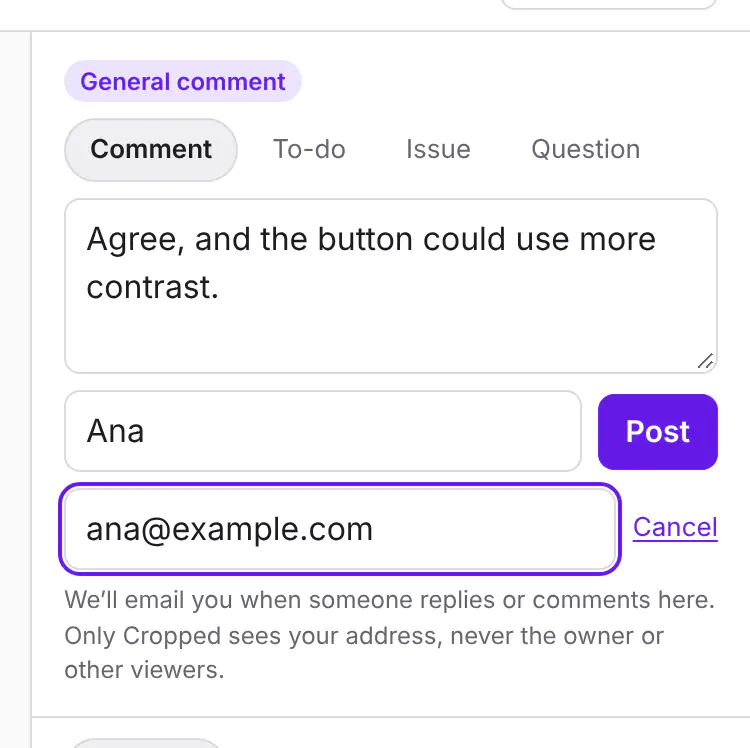
Their address is kept by Cropped only to send these emails. You, as the owner, never see it, and neither do other viewers. Deleting a link forgets everyone who followed it.
Manage your links
Open Preferences › Account › Sharing (or click Manage links after sharing) to see every link you've made, with the day each one expires. For each one you can:
- Copy the link again, or Open it in your browser.
- Rename it.
- Change expiry…: pick a new length, counted from today, or Never.
- Turn off the link, so it stops opening, and turn it back on later.
- Turn Comments off or on.
- Delete it. This removes the file and its comments for good, and frees its space.
Privacy and safety
- Only what you share leaves your computer. Everything else in Cropped stays on your device. A file you share goes to Cropped storage, where only people with its link can open it.
- Files of expired links stay until you delete the link, so only you can open them again. Deleting a link deletes its file right away.
- Email addresses for comment emails are kept encrypted, used only to send those emails, and never shown to anyone else.
- Shared pages aren't listed in search engines. Anyone you give the link to can open it, so share it only with people you'd show the file to.
- Anyone viewing a link can report it. See our Terms for what may be shared.
Troubleshooting
"Your Cropped storage is full." Delete links you no longer need, starting with expired ones: their files stay until you delete them. Sharing the Optimized copy uses far less space than Full.
Share link shows a Pro mark. Sharing comes with Pro and Platinum. Click it to see your options.
I turned on comment emails but never got the Confirm email. Check your spam or junk folder for an email from Cropped. In Comment emails, click Send again (up to three a day), or Change to fix a typo in the address.
I get too many comment emails. Comments that arrive close together already come as one email. To stop them, click Turn off in Comment emails, or the stop link in any email.
A link stopped opening. It may have expired or been turned off. Open Preferences › Account › Sharing to check.
The page says "Almost here…". The file is still uploading from the computer it was shared from. The page opens by itself when it's done. If it never does, the upload stopped: ask for the link again.
Still stuck? Click the ? button at the bottom left of the Cropped Studio to ask, send us a message, or request a feature.