 Cropped
Help
Help / How to
Convert MOV to MP4, WebM or GIF
The short answer: drop the MOV on Cropped's Studio, keep the Web preset for an MP4 that plays everywhere (or pick Website · WebM 1080p), and click Export video.
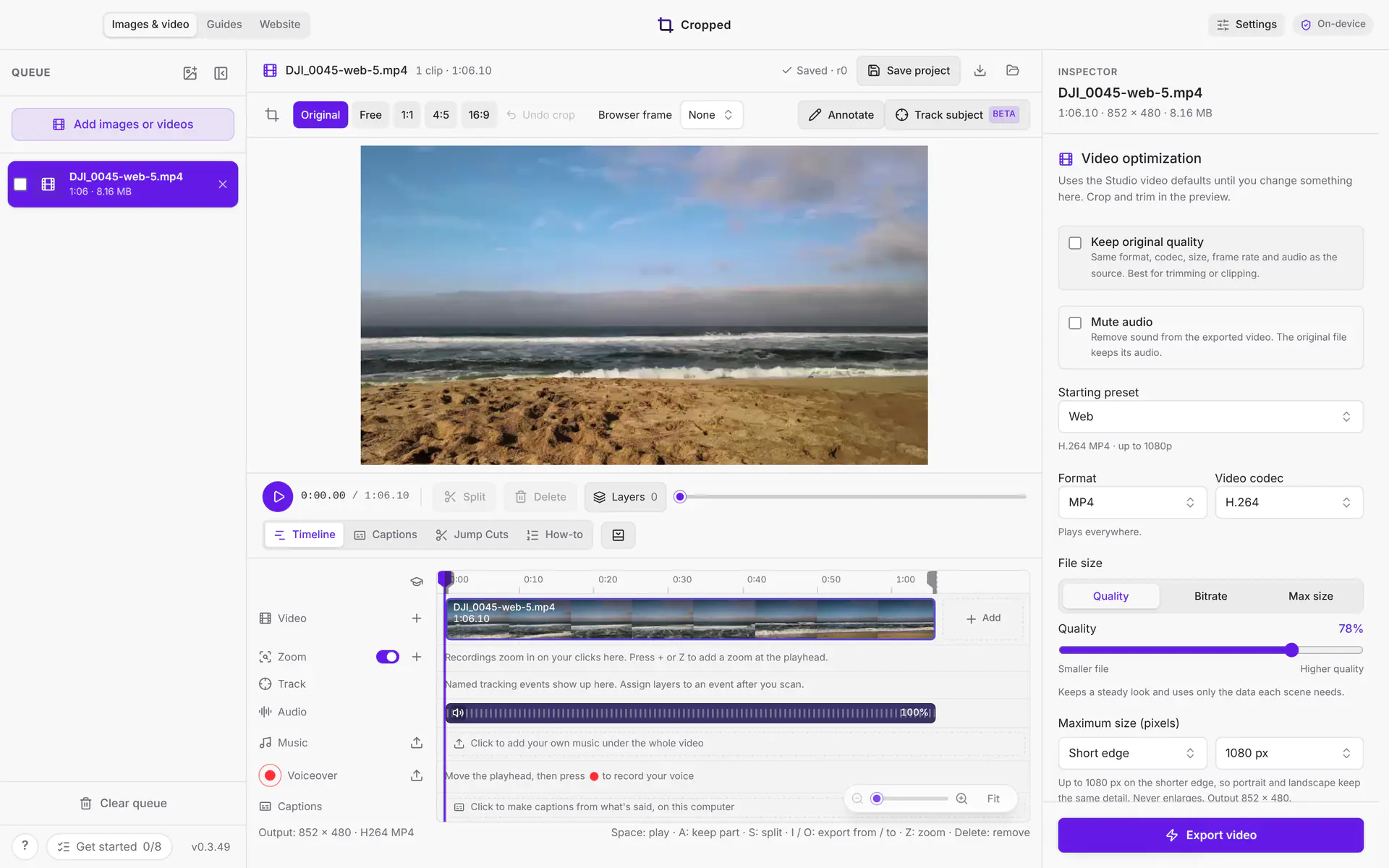
Steps
- Drop the video on the Studio, or press ⌘ Command + O (Windows and Linux: Ctrl + O). Cropped opens MP4, MOV, M4V, WebM, MKV, AVI, MPEG and GIF files.
- Pick a Starting preset:
- Web: H.264 MP4 up to 1080p, plays on every device and browser.
- Website · WebM 1080p: VP9 WebM with Opus audio for web pages.
- Original quality: same size and frame rate, just a new file.
- To choose yourself, set Format to MP4, MOV, MKV, WebM or Animated GIF, and the codec to H.264, HEVC, AV1 or VP9.
- Click Export video. The original stays where it was.
Which format should I pick?
| You need | Pick |
|---|---|
| A file that plays anywhere | MP4 with H.264 |
| A smaller file for recent devices | MP4 with HEVC (about 30% smaller) |
| Video on a website | WebM with VP9, or MP4 with AV1 |
| A loop in a README or chat | Animated GIF, or a silent WebM loop |
Coming from HandBrake?
Cropped has the same kind of presets: Very Fast, Fast, HQ and Super HQ at 480p to 4K, plus Apple, Android, Chromecast and Matroska presets. It also makes GIFs and hits a file size limit for you. See Video formats, presets and GIFs.
Still stuck? Click the ? button at the bottom left of the Cropped Studio to ask, send us a message, or request a feature.