 Cropped
Help
Help / Reference
Install app updates
The current desktop app checks shortly after opening and every six hours while running. It downloads a newer compatible version in the background. Keep using Cropped while it downloads.
See which version you have
The version you're running is always at the bottom right of the Studio's queue, next to the ? button, for example v0.3.42. Cropped Alpha adds a small α after the number. When an update is waiting, Upgrade Ready shows beside it.
Check for updates
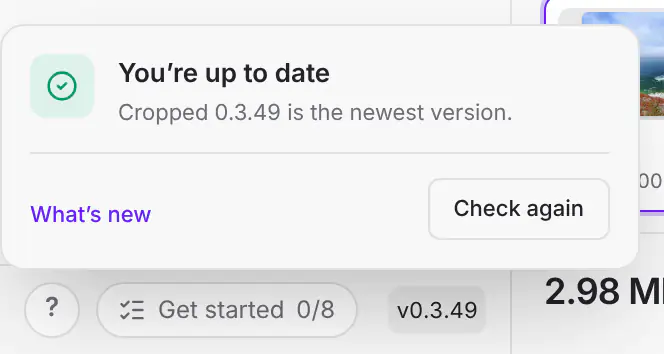
Click the version number at any time. Cropped checks for a newer version straight away and shows what it found in a small card just above: You're up to date, or the new version downloading with a progress bar. Once it has downloaded, the card says the new version is ready; click Restart to update in the same card. What's new opens the notes for the version you're running, and Check again checks once more.
You can also choose Check for Updates… from the Cropped menu on a Mac (on Windows and Linux, the menu button at the top left, under Help), or open Preferences › General, where Updates is near the top.
Upgrade Ready

Once a new version has downloaded, an Upgrade Ready button appears next to the version number at the bottom of the queue. Click it to restart into the new version. It works the same as Restart to update below, and stays grayed out while Cropped is still busy; hover over it to see why.
Restart to update
When the update is ready, click Upgrade Ready next to the version, Restart to update in the Studio banner or the version's panel, or Preferences › General › Updates. Cropped's native updater replaces the installed app and relaunches it. You do not need to find a download in your browser or drag another copy into Applications.
Restart waits for recording, capture, imports, saves and exports to finish. Save and close any annotation editor, then save your work and clear the Studio queue. The button explains what is still keeping it unavailable. Cropped never automatically restarts in the middle of your work.
Check again in that card, or Check for updates in Preferences, checks again immediately. If downloading fails, the card says Couldn't update; reconnect and choose Try again. The installed version remains usable. Leave enough disk space for the downloaded package, extraction and replacement app.
Alpha and stable
Cropped Alpha receives Alpha updates only. Regular Cropped receives stable updates only. Their app identities and feeds stay separate, and automatic updates do not switch editions or offer an older version.
Updating from an older version
Older releases that only show Download, including the Legacy Mac edition, still use their installer workflow. Install the first release with native updates once; subsequent releases use the background download and restart flow. This capability is not added retroactively to apps already installed.
Your settings and license stay with the same edition. The Updates page lists release notes.
If Settings or Drop Zone stopped responding in 0.3.10
Version 0.3.10 has been withdrawn because a Mac regression could stall the app's native connection, hiding Capture preferences and stopping shortcuts and Drop Zone actions. Install 0.3.11 or later. Your saved settings and license are retained.
The stall can also stop 0.3.10 from checking for updates, so use the latest installer for this recovery. Quit Cropped, open the DMG and replace the same edition in Applications, then open that installed copy. Regular Cropped and Cropped Alpha have separate settings; keep using the same edition. Run one edition at a time when they share capture shortcuts.
Still stuck? Click the ? button at the bottom left of the Cropped Studio to ask, send us a message, or request a feature.