 Cropped
Help
Help / Crop, optimize & export
Add captions to a video
Cropped listens to a video and writes captions for it. It all happens on your computer: the sound never leaves it, there's no account, and nothing is uploaded.
Quick answer: open a video in the Studio, click Captions under the preview, then click Make captions. Fix any words in the list, drag the yellow blocks on the Captions lane to change when they show, pick a look, then click Export video. Captions are burned into the video, and an .srt file is saved next to it.
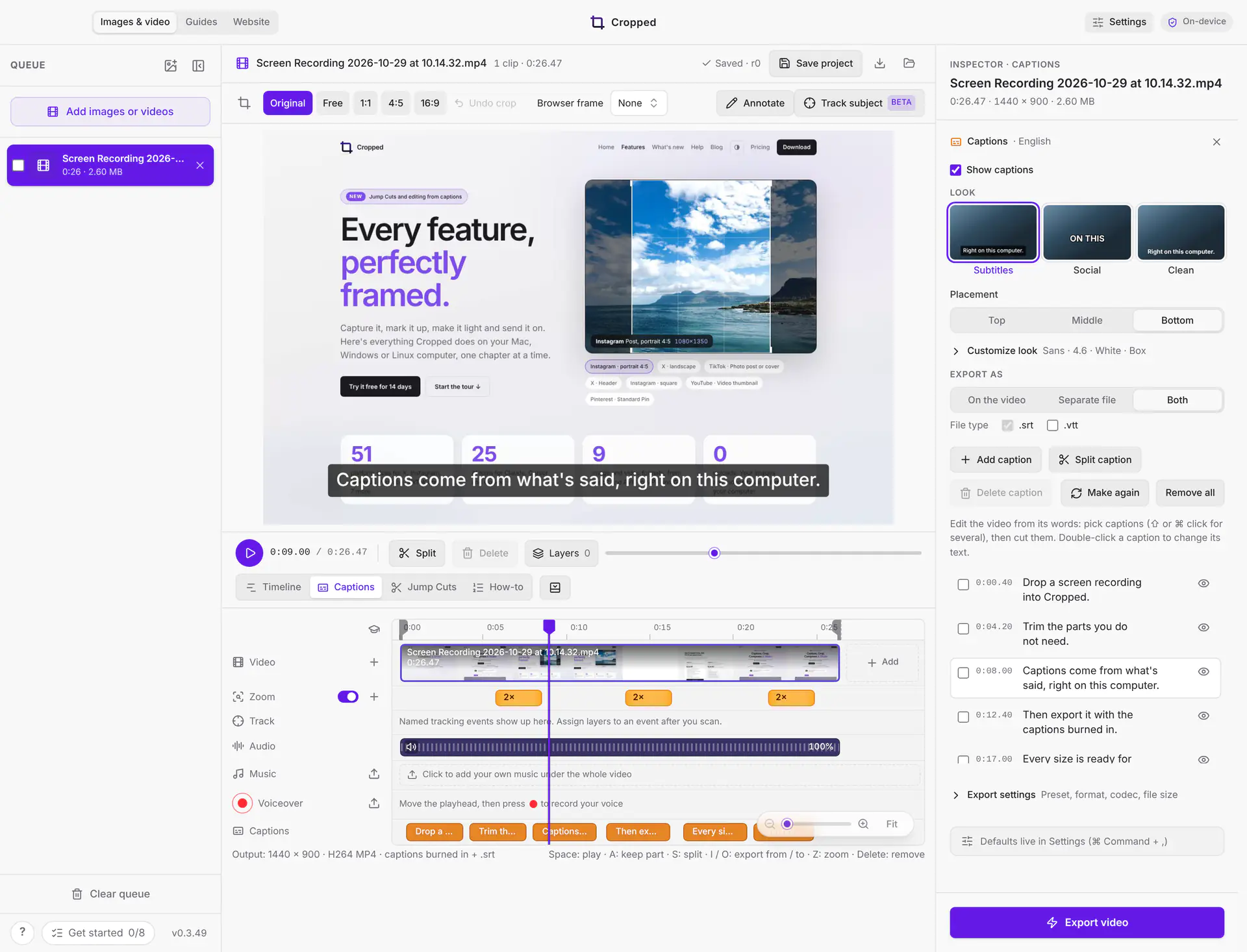
Most pictures here are from Cropped's browser preview, and the one under Edit a video from its words is from Cropped for Mac. Captions work the same in Cropped for Mac, Windows and Linux.
Make captions
- Open a video in the Studio. It can be one video or a combined video.
- Click Captions in the row under the preview. The Captions controls open in the Inspector on the right, and the timeline stays in view. You can also click the empty Captions lane.
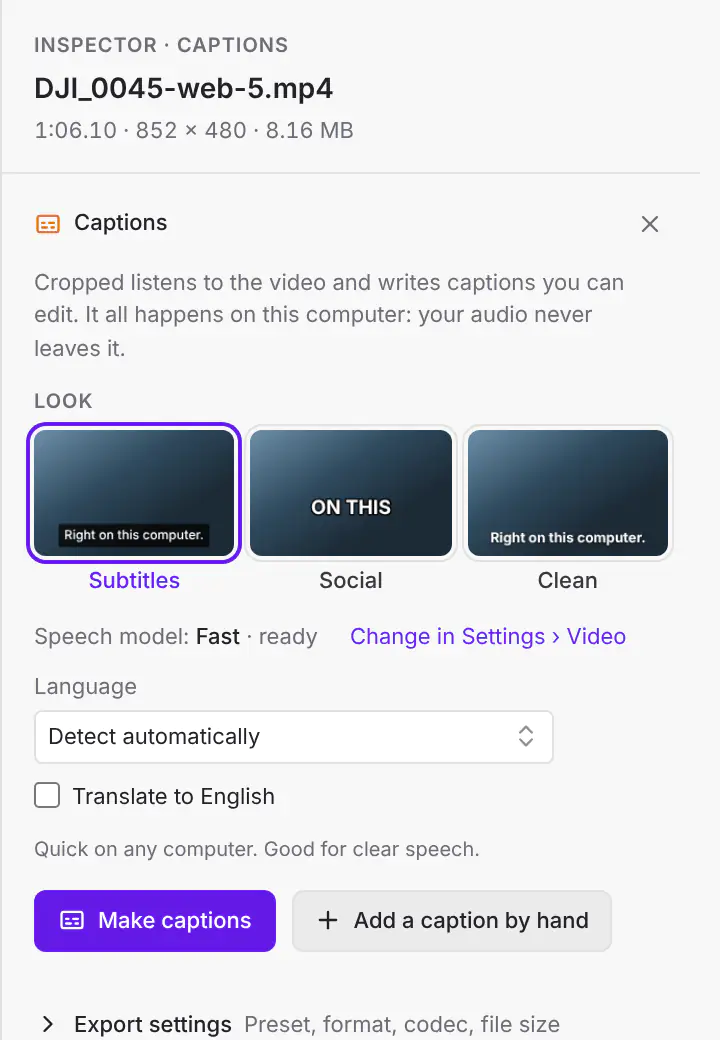
- Pick the Language and a Look (you can change the look later). The speech model, Fast or Accurate, is in Preferences › Video; Change in Settings › Video (Preferences on Windows and Linux) takes you there.
- Click Make captions. Cropped pulls out the sound, listens to it and writes the captions. A progress bar shows how far it is, and Cancel stops it.
When it's done, each caption shows as a yellow block on the Captions lane, and the caption under the playhead shows on the preview.
Captions come from the video's own sound and from any voiceover you recorded. Music isn't captioned. A video with no sound says so instead of making empty captions.
To start over with another model or language, click Make again. Remove all deletes every caption.
Speech models
Cropped uses Whisper, a speech recognition model by OpenAI, through whisper.cpp. Both are free to use, including for work, under the MIT license. Cropped downloads the model you pick the first time you make captions, then works offline.
| Model | Download | Best for |
|---|---|---|
| Fast | 148 MB | Clear speech in a quiet room. Quick on any computer. The default on Windows, Linux and Intel Macs. |
| Accurate | 574 MB | Names, jargon, accents and noisy recordings. The default on Macs with Apple silicon, where it runs on the graphics chip. Slower on other computers. |
The model chips show ready once a model is downloaded. Cropped keeps them in its own app folder, and checks each download before using it.
Language and translation
Leave Language on Detect automatically, or pick the language that's spoken if Cropped guesses wrong. Check Translate to English to get English captions for a video in another language. Cropped remembers your model and language for next time.
Edit and time captions
- Fix the words: click a caption in the list and type. Each caption shows its start time on the left. The caption under the playhead is highlighted.
- Jump to a caption: click its block on the Captions lane. The playhead moves there and the caption is selected.
- Move a caption: drag its block left or right.
- Change when it starts or ends: drag the left or right edge of its block.
- Add a caption: move the playhead and click Add caption. Type the words in the new line in the list.
- Split a caption: move the playhead inside it and click Split caption. Each word goes to the half where it was spoken.
- Delete a caption: select it and click Delete caption.
Captions stick to the words they belong to. When you trim, cut, split or reorder clips, the captions move with them, and captions in parts you leave out are left out too.
Edit a video from its words
Your captions double as a script you can cut. Remove a line from the captions, and that part of the video goes with it.
- In the Captions list, click a caption to pick it. ⇧ Shift-click picks a run of captions, and ⌘ Command-click (Windows and Linux: Ctrl-click) adds or removes one.
- Click Cut from video, or press Delete. That part of the recording is taken out of the edit, with a short sound fade so it doesn't click. Captions next to each other are cut as one.
- Cut captions stay in the list, struck through, so you can see what went. Pick them and click Show in video to put them back.
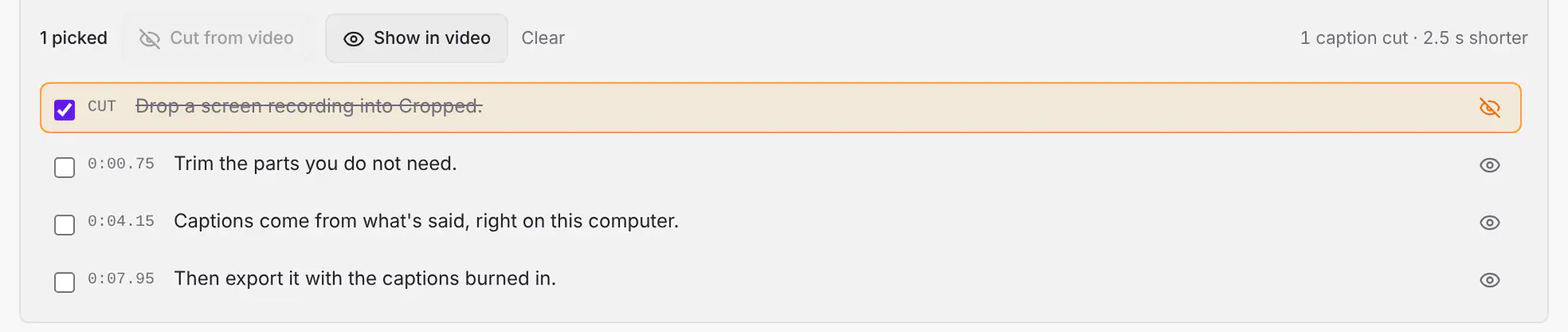
The line above the list shows how many captions are cut and how much shorter the video is. To change a caption's words, double-click it, type, then press Return to save or Esc to cancel.
For pauses and ums between the words, try Jump Cuts, which finds and cuts them for you.
Style captions
The style controls sit beside the caption list when the panel is wide, and above it when it is narrow.
| Setting | What it does |
|---|---|
| Look | Three tiles that show each look on a sample caption. Subtitles: white text on a dark box at the bottom. Social: big bold capitals with an outline in the middle, a few words at a time, for short videos. Clean: white text with a soft shadow. Picking a look sets everything under Customize look, and you can change each setting after. |
| Placement | Top, Middle or Bottom of the video. |
| Customize look | Click it to open the finer settings below. When it's closed, it shows what's set, such as Sans · 4.6 · White · Box. |
| Font | Sans, Rounded, Serif or Mono. |
| B and ALL CAPS | Bold text, and every letter in capitals. |
| Size | How tall the text is, as a share of the video's height, so it looks the same at any export size. |
| Color | White, yellow, green, blue or pink text. |
| Behind the text | Box, Outline or Shadow, so the words read on any background. |
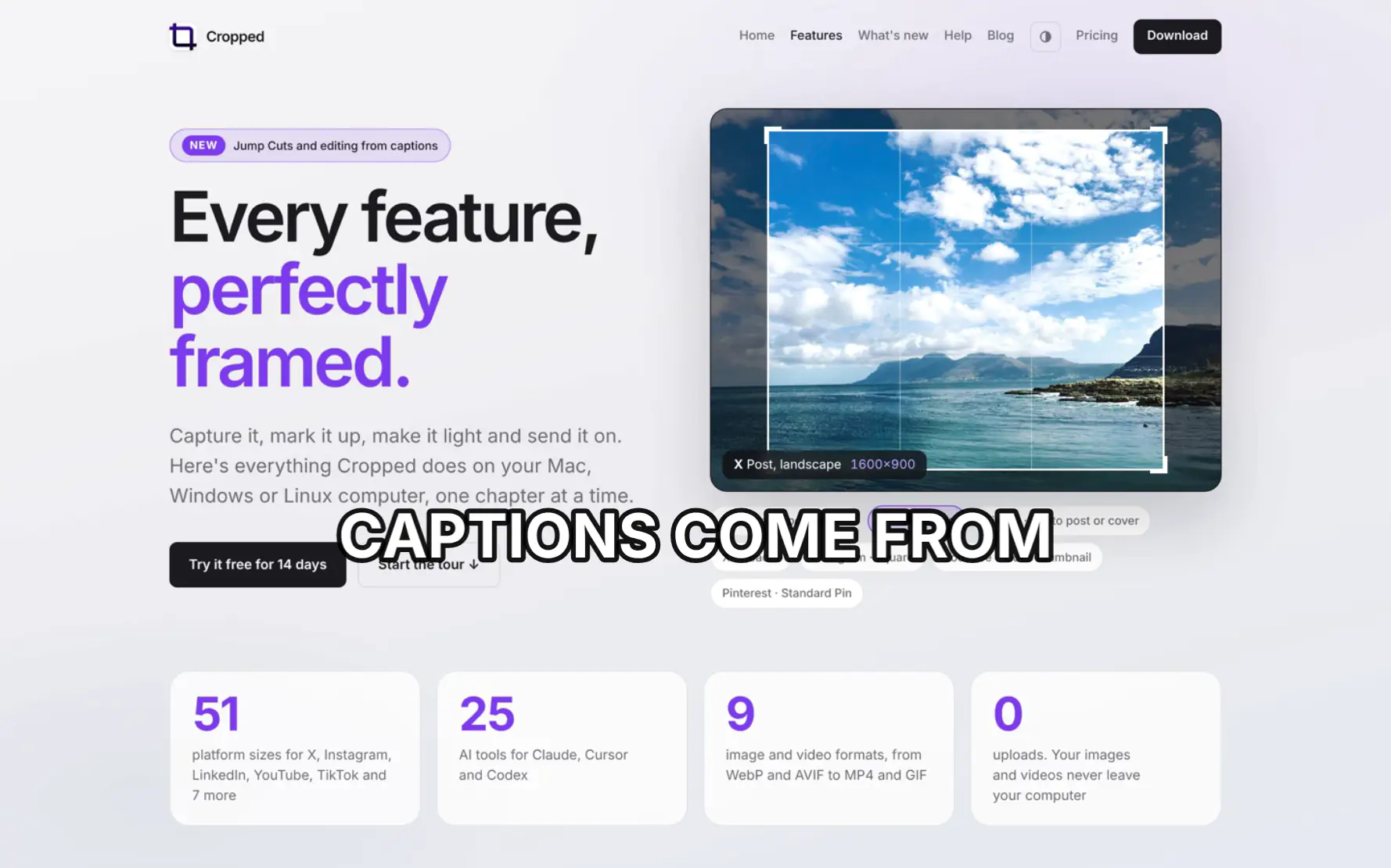
Uncheck Show captions to hide them from the preview and the export without deleting them.
Export captions
Pick where the captions go under Export as in the Captions controls, then click Export video:
- On the video: the captions become part of the picture, so they show everywhere, including on sites and apps that don't support subtitle files. Works for MP4, MOV, MKV, WebM and GIF.
- Separate file: save an .srt file, a subtitle file next to the video with the same name, for YouTube, LinkedIn, X, video players and editors. Or save a .vtt file, a WebVTT subtitle file for the
<track>tag on a web page. Tick .srt, .vtt or both. - Both: burned in, plus the subtitle files you tick.
The line under the timeline says what will be saved, for example · captions burned in + .srt. Subtitle files use the times of the exported video, after trims and cuts. If a file with the same name is already there, Cropped adds a number instead of replacing it.
Troubleshooting
- Make captions is grayed out: captions are made in Cropped for Mac, Windows and Linux, not in the browser preview.
- The download stopped: check your internet connection and click Make captions again. Only the model is downloaded; your video never is.
- Wrong words or language: pick the spoken language instead of Detect automatically, or switch to the Accurate model and click Make again.
- "No speech was found": the video may be very quiet or have only music. Add captions by hand with Add caption.
See also: Trim, crop and pick clips from videos, Combine videos, add music and a voiceover and Video formats and GIFs.
Still stuck? Click the ? button at the bottom left of the Cropped Studio to ask, send us a message, or request a feature.