 Cropped
Help
Help / Crop, optimize & export
Video formats, presets and GIFs
Cropped can make a video small enough to email, a high-quality file for YouTube, or a looping GIF. Start from a preset and change anything you like.
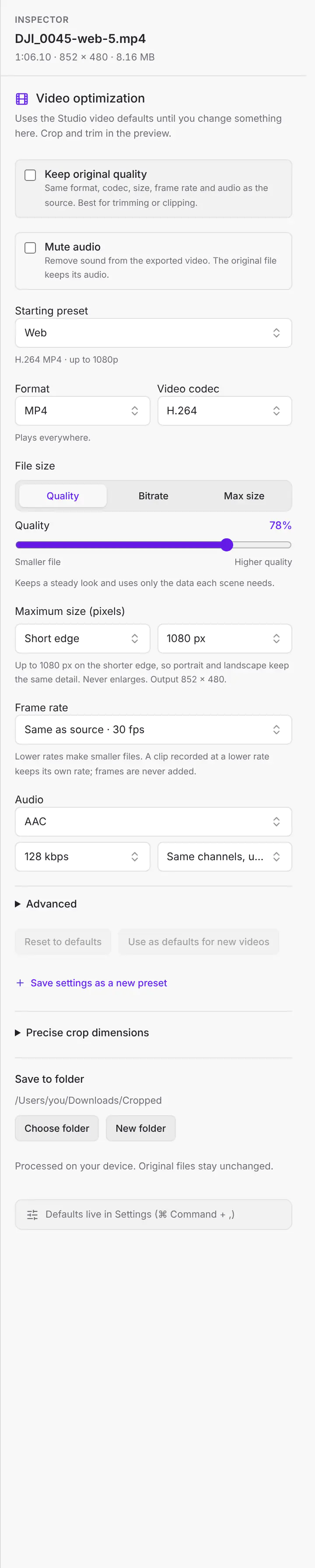
Presets
Choose a Starting preset. If you change a setting, Cropped shows "Changed from Web" and a Revert link.
| Group | Presets |
|---|---|
| Original | Original quality: the same format, codec, size, frame rate and audio as the video you opened. See Keep the original quality. |
| Web | Web (H.264 MP4 up to 1080p, the default), Share (720p), Email · compact 480p (under 18 MB), Website · silent 720p, Website · WebM 1080p, WebM VP9 720p30, WebM AV1 1080p30, WebM silent loop 720p, MP4 AV1 1080p30 |
| AI | Agent / LLM (480p, mono, very small), AI · 1080p / 2 fps (H.264 with sharp text at 2 frames a second), GIF · for AI, 2 fps (720p, 256 colors, no dithering). See Recordings for AI. |
| Social | Social · 1080p / 30 fps, YouTube 1080p60, YouTube 2160p60 4K HEVC, Discord · under 10 MB, WhatsApp · under 16 MB, Email · under 25 MB 720p |
| General | Very Fast, Fast, HQ and Super HQ, each at 2160p60 4K (AV1 or HEVC), 1080p30, 720p30, 576p25 and 480p30 |
| Devices | Apple 1080p60 Surround, Apple 2160p60 4K HEVC Surround, Android 1080p30, Android 720p30, Chromecast 1080p60 Surround, Chromecast 2160p60 4K HEVC Surround |
| Matroska | MKV files with H.264, H.265, AV1 or VP9 at 1080p30 or 2160p60 4K |
| Production | MOV H.264 for editing, MOV HEVC HDR, proxy 540p, Archive (HEVC, original size, original audio) |
| GIF | GIF · small loop (320p, 10 fps, 64 colors), GIF · smooth loop (480p, 20 fps, 256 colors) |
Save settings as a new preset keeps your own mix. Your presets appear under My presets, in the Studio and in the Drop Zone. Use Update to change a saved preset, or the trash button to delete it.
Recordings for AI
AI tools look at a video a frame or two each second, so the frames in between mostly make the file bigger. The AI presets keep text sharp and save only 2 frames a second. The Frame rate menu also goes down to 1, 2 and 5 fps for any export.
- AI · 1080p / 2 fps is an MP4. Use it for tools that read video, such as Gemini. It keeps the sound, in mono.
- GIF · for AI, 2 fps is a GIF with no dithering, so text stays clean. Some AI chat apps look at only the first frame of a GIF. For those, send the MP4, or turn the GIF into one picture of all its frames with GIF ➞ Arranged.
To save every new recording this way, open Preferences › Capture (on Mac, Settings › Capture) and, under Recordings, set Preset to one of them. Cropped still records smoothly, at the frame rate you chose, so you can trim it first. The saved copy has 2 frames a second. This works on Mac, Windows and Linux.
HDR video
iPhones and many cameras record HDR (HLG, HDR10 or Dolby Vision). When a video is HDR, Keep HDR shows in Video optimization and is on by default, so the export keeps its brightness and color.
- HEVC, AV1 and VP9 keep HDR as 10-bit video. H.264 can't hold HDR, so an H.264 export with Keep HDR on is saved as HEVC.
- The Web, Share, Email, Discord, WhatsApp, Agent, AI · 1080p / 2 fps, silent loop and proxy presets turn Keep HDR off, because those files need to play everywhere. Turn it back on if you like.
- Turn Keep HDR off to convert to normal (SDR) colors. Cropped tone maps the brightest parts so they still look natural on any screen.
- Studio projects keep HDR too: joined clips, Jump Cuts, auto zoom and burned-in captions. SDR clips and captions in an HDR project are matched to HDR's normal white, so they don't glare.
- GIFs, browser frames and layers are SDR, so those exports are converted, and Cropped tells you when it does.
- Dolby Vision videos keep their HDR10 or HLG picture. The Dolby Vision extras are not kept after an edit.
- The preview shows what you'll get: HDR on an HDR display when Keep HDR is on, SDR colors when it's off.
Keep the original quality
Tick Keep original quality at the top of the video settings, or pick Original quality as the starting preset, when you only want to trim, clip or crop a video, not shrink it. Cropped keeps the source's format (MP4, MOV, MKV or WebM), codec, full size, frame rate and audio, and encodes at about the source's own bitrate, so the result looks like the original. Crop, trim and joined clips still apply.
- A whole video with no changes keeps its original audio untouched. A trimmed one re-encodes the audio at a similar rate.
- Videos in a format Cropped can't write, such as ProRes or AVI, are saved as high-quality H.264 in MOV or MP4.
- The file can be as large as the original for the same length. To make it smaller, choose another preset.
The box is at the top of the Studio's video settings and of Preferences › Drop Zone › Videos.
Format and codec
| Format | Codecs | Use it for |
|---|---|---|
| MP4 | H.264, HEVC, AV1 | Almost everything. H.264 plays everywhere. |
| MOV (QuickTime) | H.264, HEVC | Editing in Final Cut, iMovie and Premiere |
| MKV (Matroska) | H.264, HEVC, AV1, VP9 | Archiving and media servers |
| WebM | VP9, AV1 | Websites, with Opus audio |
| Animated GIF | GIF | Short loops in docs, chats and READMEs |
- H.264 plays on every device and browser.
- HEVC (H.265) makes files about 30% smaller than H.264 at the same quality. It plays on Apple devices and most recent phones, TVs and browsers.
- AV1 and VP9 are the most efficient for the web, but take longer to encode because they use the processor rather than the graphics chip.
Quality and file size
How file size is chosen has three modes:
| Mode | What you set | Best for |
|---|---|---|
| Quality | A percentage from 1 to 100 | Most videos. Cropped keeps a steady look and uses only the data each scene needs, so a still screen recording stays tiny and a busy scene gets more data. |
| Bitrate | Kilobits per second (kbps) | Streaming or a platform that asks for a set bitrate. Every second gets about the same amount of data. |
| Max size | Megabytes (MB) | Hard upload limits, like 10 MB for Discord or 25 MB for email. Cropped works out the bitrate from the video's length and shows an estimate. If the limit is too small for the length, it warns: "Too small for this length." Trim the video or raise the limit. |
Pick a quality
Higher numbers look better and make bigger files. These are the values the built-in presets use:
| Quality | Preset that uses it | Looks like |
|---|---|---|
| 85% | Archive | Close to the original. For keeping, not sharing. |
| 78% | Web (the default) | Sharp for screen recordings, demos and product videos. |
| 75% | Social · 1080p / 30 fps | Good for social posts, which re-compress anyway. |
| 62% | Share | Fine for chat apps and quick previews, at 720p. |
| 50% | Email · compact 480p | Small attachments where detail matters less. |
| 48% | Agent / LLM | Smallest useful copy for AI chats and agents, at 480p. |
Picture size changes file size more than quality does. Before you lower quality below 60%, try a smaller Maximum size, such as 720 instead of 1080.
Make a video smaller
Try these in order, and check the size estimate after each one:
- Trim the parts you don't need. Every second you cut is data you don't send.
- Lower Maximum size to 720 or 480.
- Lower Frame rate to 30, or 24 for talking and slides.
- Choose HEVC, about 30% smaller than H.264, if the people you send it to have recent devices.
- Choose Remove audio for silent clips, or lower the audio bitrate to 96 kbps.
- Lower Quality a little at a time.
Size, frame rate and audio
| Setting | Choices |
|---|---|
| Maximum size (pixels) | Measure the Short edge, Long edge or Height, then pick Original, 2160, 1440, 1080, 720, 480, 320 or 240 px, or a custom size. Videos are never enlarged. Short edge keeps portrait and landscape videos equally sharp. |
| Frame rate | Same as source, or a limit from 10 to 60 fps. A clip recorded at a lower rate keeps its own rate, so frames are never added. GIFs go up to 50 fps. |
| Audio | AAC (Opus for WebM), Keep original when possible, or Remove audio. Bitrate from 48 to 320 kbps. Channels: same, up to stereo; keep surround, up to 5.1; stereo; or mono. |
Advanced
| Setting | What it does |
|---|---|
| Encoder speed | Fast, Balanced or Smallest. Smallest takes longer for a smaller file. |
| Keyframe interval | How often a full frame is stored. Automatic (4 s) suits most uses. |
| Peak bitrate cap | Limits spikes, for streaming. |
| Pixel scale | Shrinks the video by a percentage. |
| Keep creation date | Keeps the original date. Location and other details are always removed. |
GIF settings
Choosing Animated GIF sets 12.5 fps and a height of 480 to start. Then:
- Palette: One palette (smaller) or Per frame (best color).
- Colors: 64, 128 or 256.
- Dithering: Smooth, Ordered or None.
- Loop: Loop forever, Play once, or a set number of repeats.
Video settings for the Drop Zone
Videos dropped on the Drop Zone have their own settings, separate from the Studio. Click Settings in the Drop Zone to pick a preset under Video and drag Video quality, or click Customize… to change the format, size, frame rate and audio in Preferences › Drop Zone › Videos. Every option on this page works there too. See Video settings for dropped videos.
Still stuck? Click the ? button at the bottom left of the Cropped Studio to ask, send us a message, or request a feature.