 Cropped
Help
Help / Crop, optimize & export
Jump Cuts: cut pauses, retakes and ums automatically
Jump Cuts makes a talking video shorter for you. Cropped listens to the video, finds the pauses, the takes you started again, the ums and uhs and any distorted sound, and shows every cut for you to check before anything changes. It all runs on your computer, and your original file is never touched.
Jump Cuts is part of Cropped Pro.
Cut a video
- Open a video with sound in the Studio. See Trim, crop and pick clips from videos.
- Click Jump Cuts in the row under the preview. Its controls open in the Inspector on the right, and the timeline stays in view.
- Pick a Pace:
- Natural cuts long pauses only.
- Tight gives a brisk, YouTube-style pace. This is where Jump Cuts starts.
- Snappy cuts every breath, for Shorts and Reels.
- Under Also cut, tick Restarted takes and Filler words (um, uh) if you want those gone. Everything else is under Advanced, which shows what's set when it's closed (see Fine-tune).
- Click Find cuts. Cropped shows how much shorter the video will be and lists the proposed cuts, each with its reason (Pause, Retake, Filler or Distorted).
- Click a cut to play from just before it. Untick any cut you want to keep.
- Pick a Cut style (see below). It sits with the cuts, since it only matters once you know what will be cut.
- Click Apply. The cut parts show dimmed on the timeline, and the preview and export skip them. The status bar shows the length before and after.
- Click Export video at the foot of the Inspector to save the shorter video.
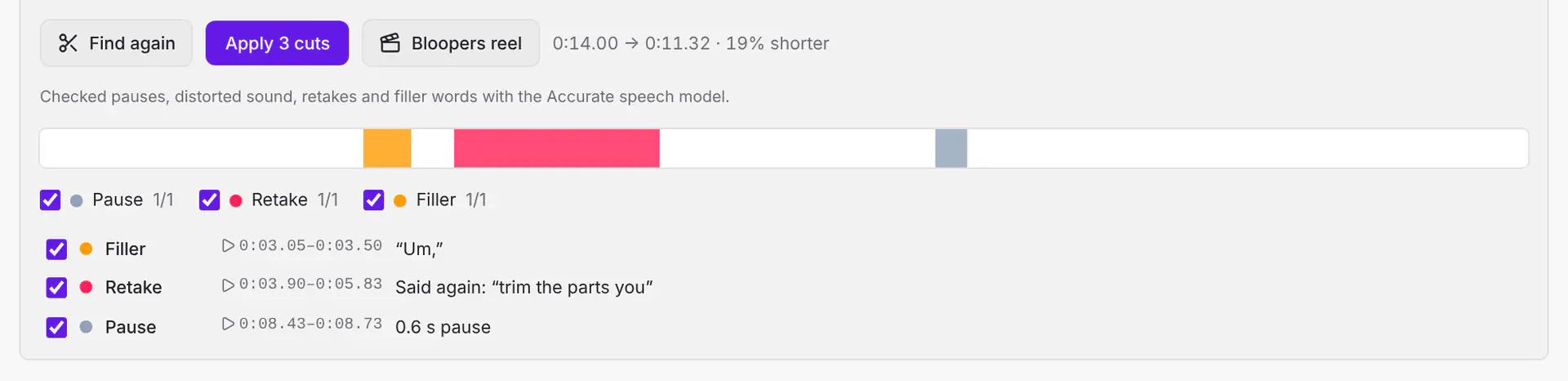
Changed something before applying? Click Find again. Changed your mind after? Click Undo jump cuts, or press + on a dimmed part of the timeline to bring just that part back. Applied cuts are ordinary clips, so you can still trim, split and reorder them by hand.
Cut styles
| Style | What it looks like |
|---|---|
| Hard cut | Straight from one take to the next, the way most talking videos on YouTube are cut. Nothing is added; the picture simply jumps. |
| Punch-in | Every other take is shown a little closer in, so each jump reads as a deliberate change of shot. Set how much closer with Tighter by, and whether it snaps or eases in. |
| Dip | A quick fade to black and back at every cut. Softer and calmer; good when the framing changed between takes. |
Every style fades the sound for a moment at each cut, so it never clicks.
Ums and uhs
To cut filler words, Cropped has to hear them. Open Advanced, and under Listen with, pick Accurate: it hears ums and uhs and gets names right. Fast is quicker but skips over filler words, so it won't find any to cut. Each speech model downloads once, the first time you use it.
Fine-tune
Click Advanced to open these. Your choice to keep it open is remembered.
- Cut pauses over a number of seconds: raise it to keep more short pauses.
- Sensitivity: lower keeps quieter sounds; higher treats more of the room noise as a pause.
- Keep: the seconds of breathing room left before each line starts and after it stops.
- Decide with: Jump Cuts decides on your computer by default. If you've connected an AI provider with your own key, you can let it decide instead: Decide with appears once a key is added in Preferences › AI tools › Provider connections. Only the transcript (words and times) is sent, never the video.
- Distorted sound: Cut when no words are lost, Show, don’t cut or Ignore.
- Sound fade: the milliseconds of fade at each cut, so the sound never clicks.
Bloopers reel
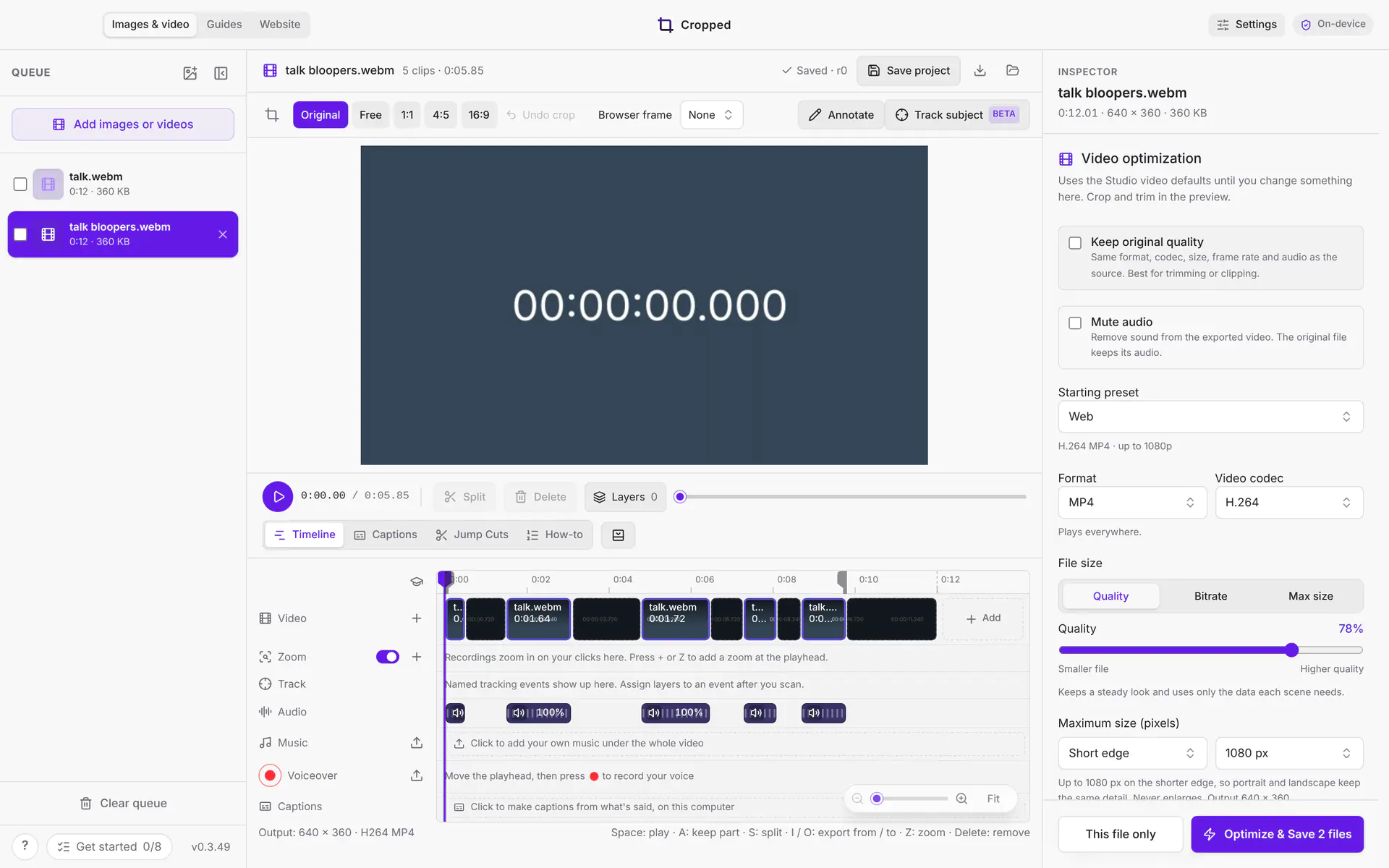
Once Jump Cuts has found cuts, click Bloopers reel. Cropped opens a new project with only the parts that get cut, back to back: the pauses, the ums and the restarted takes. Your edit is left as it is, and the reel exports like any other video.
Cut by the words instead
Want to pick exactly which lines go? Make captions, then cut them straight from the caption list. See Edit a video from its words.
Troubleshooting
- "Nothing to cut at this pace." Try Snappy, or lower the pause length.
- No ums or uhs were found. Pick Accurate under Listen with and click Find again.
- "This video has no sound Cropped can read." Jump Cuts needs a video with a sound track.
Still stuck? Click the ? button at the bottom left of the Cropped Studio to ask, send us a message, or request a feature.